First shift guide

How to use OrderRestro

Follow a restaurant from first setup to the last order of the day, with real screenshots from the app at every step.

About 10 minutes to first orderFictional sample data in screenshots
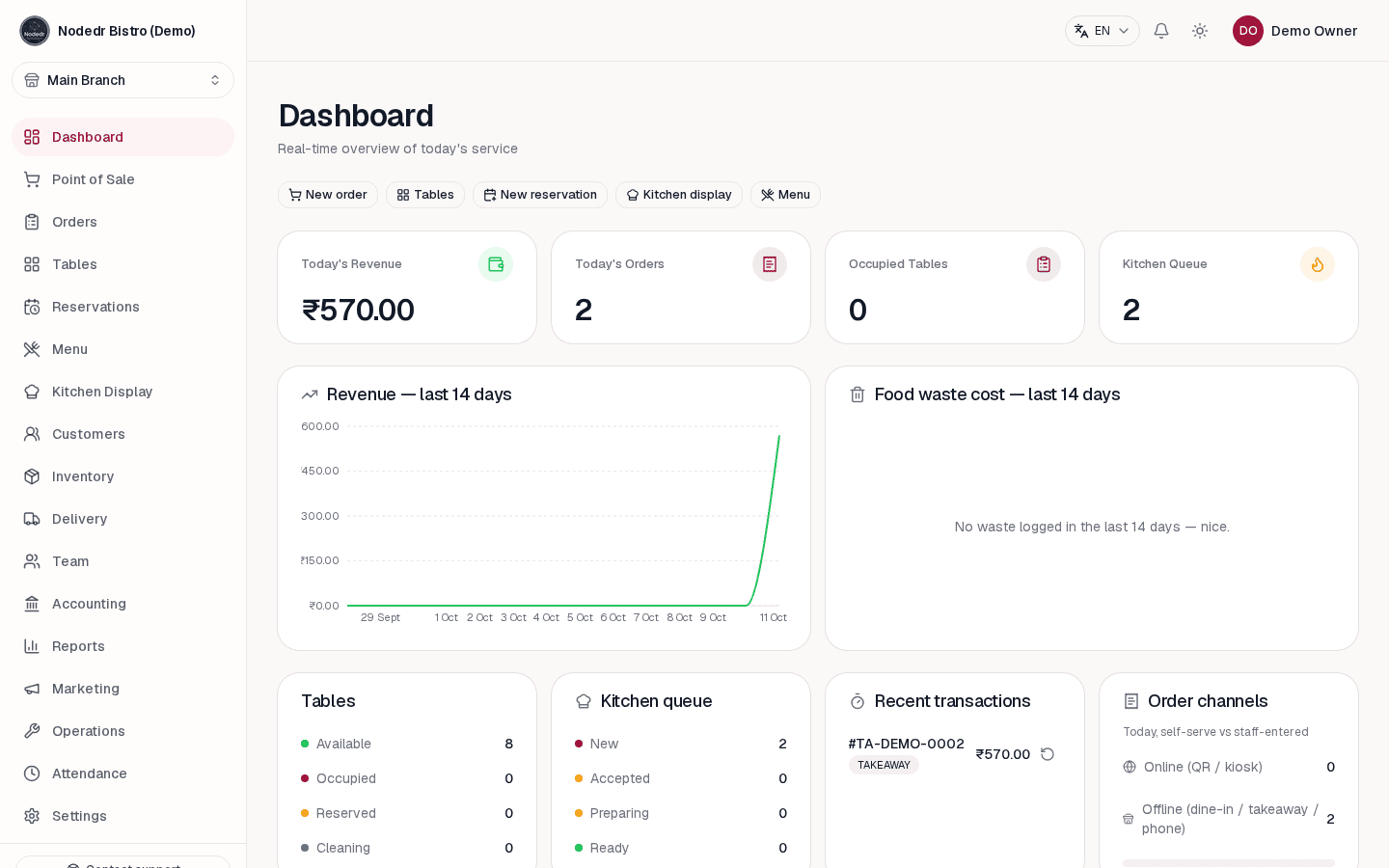
OrderRestro dashboard showing the restaurant's daily overview
Your dashboard brings the shift into one view.
From setup to close

A restaurant day, step by step

The screenshots use demo data to show where each task happens. Your menu, prices, people and records stay on the server you run.

01First run

Create your restaurant

Install OrderRestro on the computer that will stay on at your restaurant. Open its local address in a browser, create the owner account, and sign in. The app and its database run on your own server.

  • Run the one-command installer
  • Open http://localhost:1995
  • Create your owner account
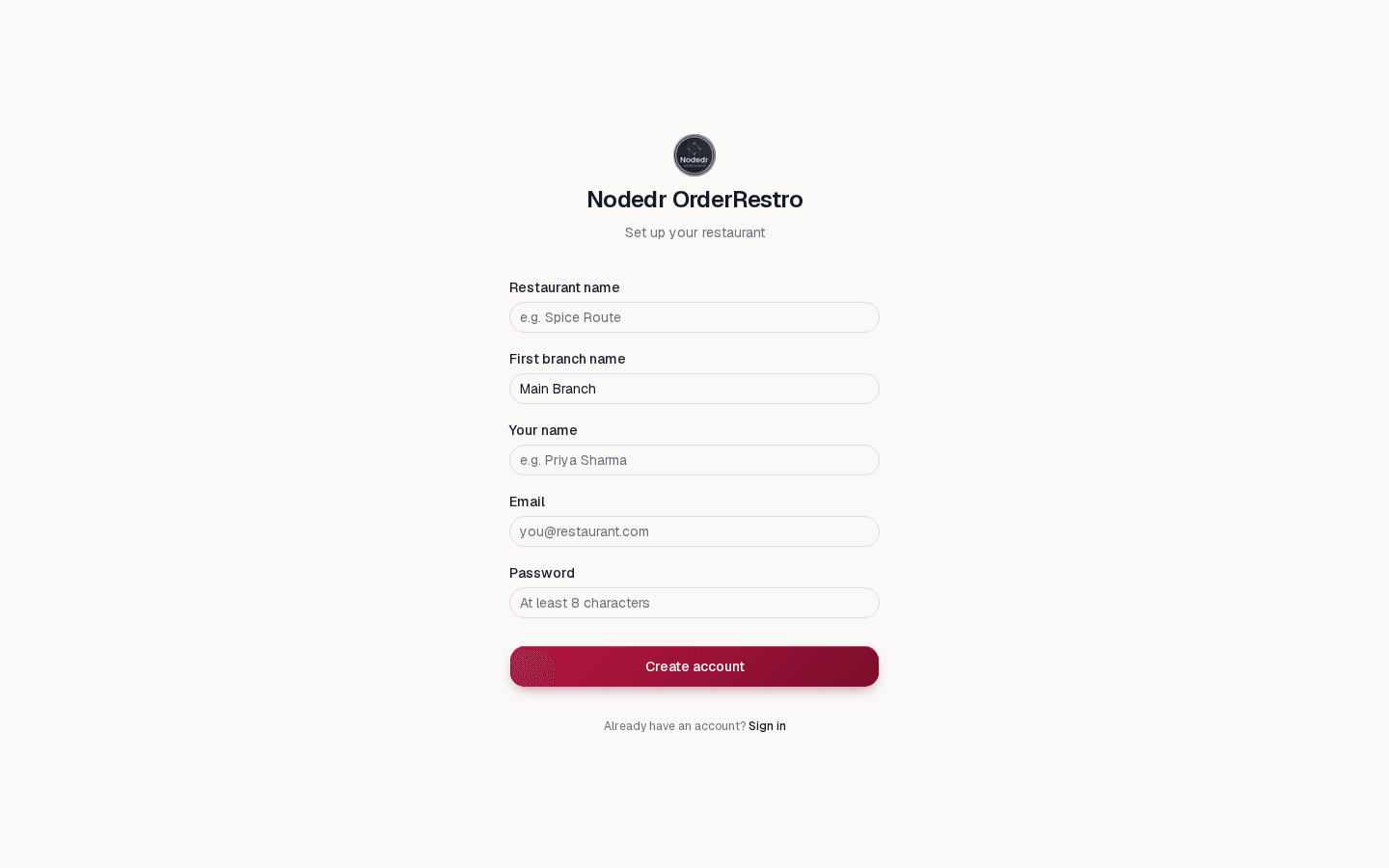
OrderRestro sign-up screen for creating the restaurant owner account
Create your owner account
OrderRestro dashboard with restaurant service and sales overview
Your shift at a glance
02One-time setup

Set up the branch and your team

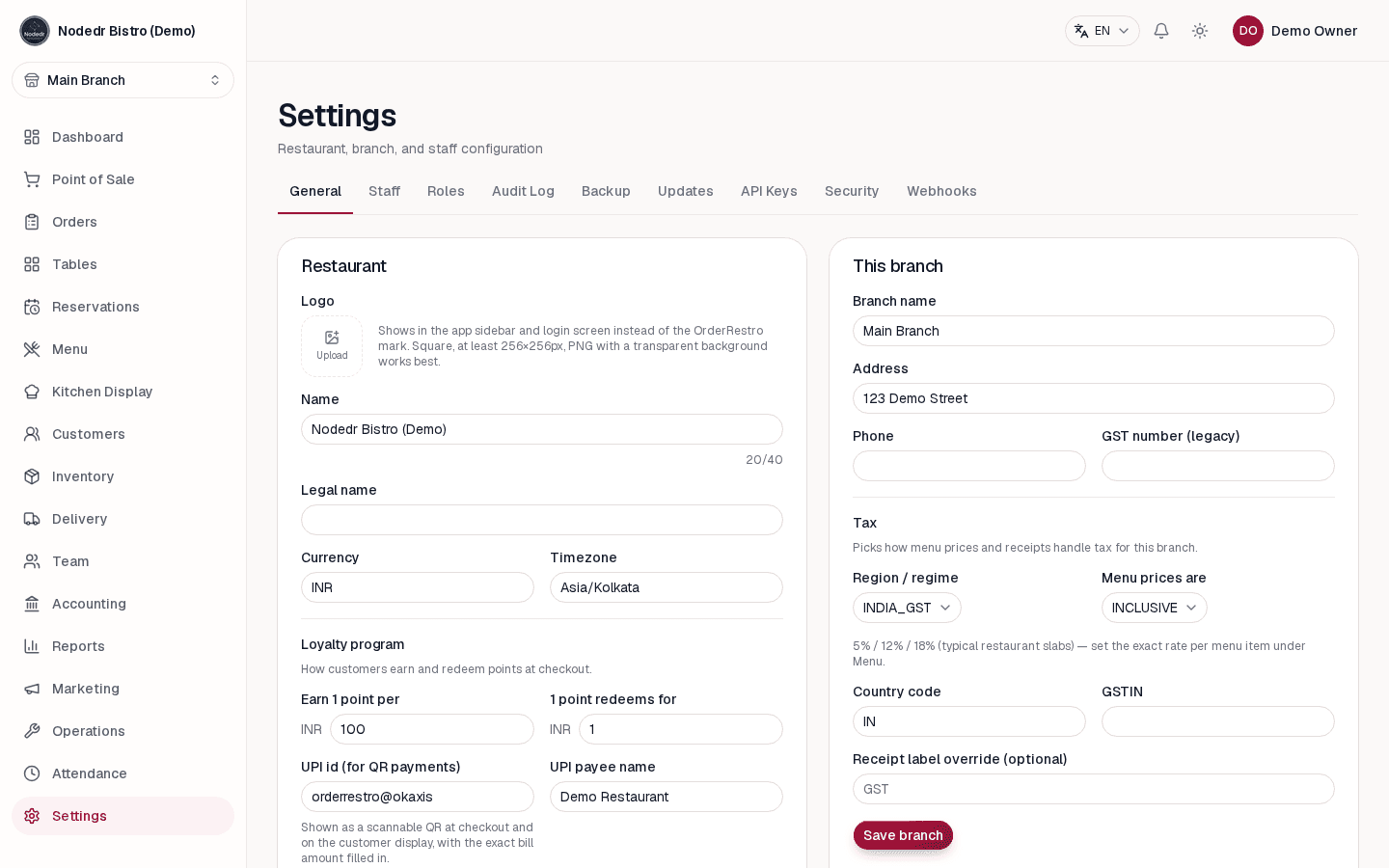
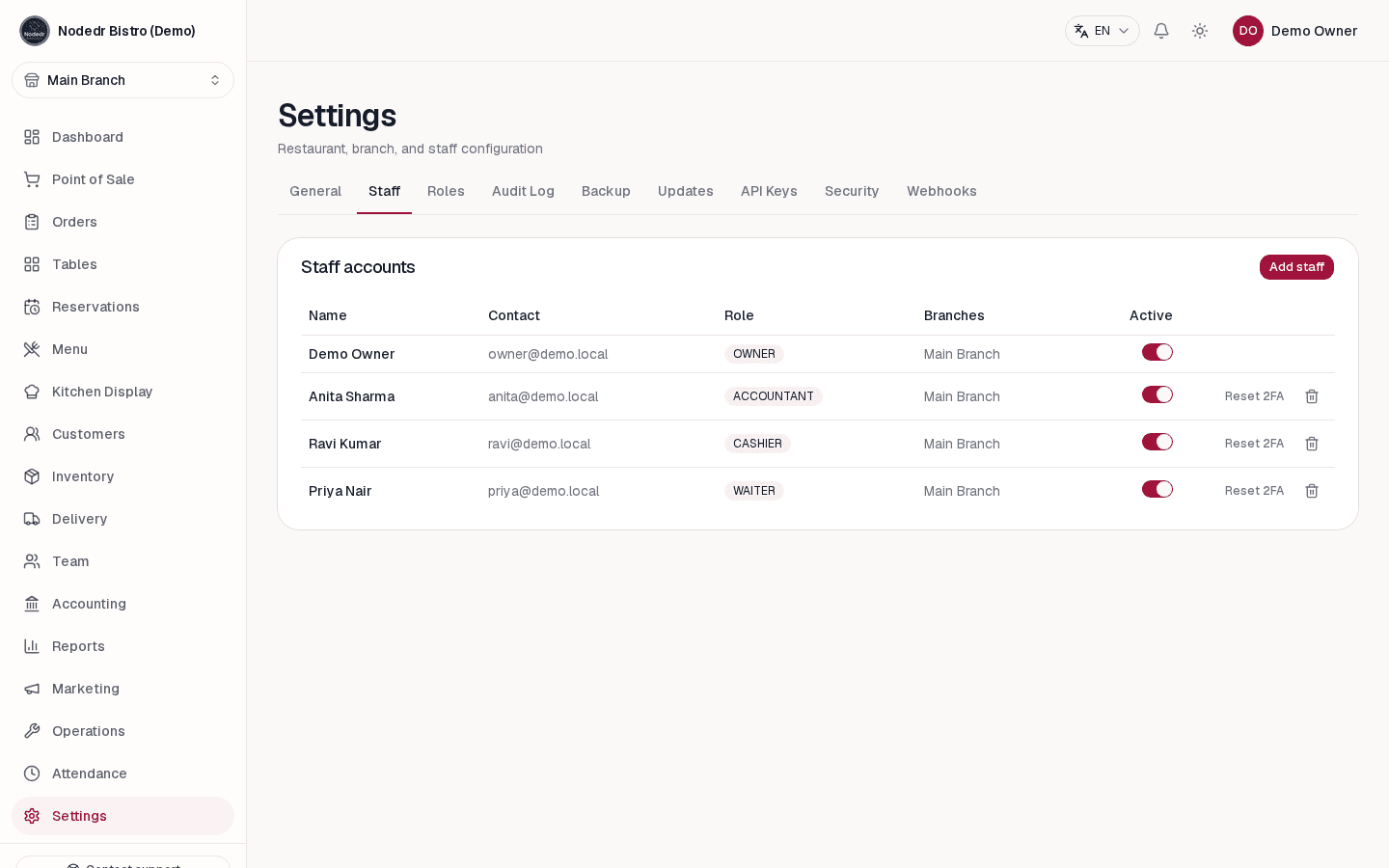
In Settings, enter the restaurant name, local timezone, currency, address and tax regime. Add the UPI payee details if you accept UPI. Create staff accounts and assign only the permissions each role needs.

  • Choose the branch tax settings
  • Add your UPI payee when applicable
  • Create staff accounts and roles
OrderRestro restaurant and branch settings
Restaurant and branch details
OrderRestro staff accounts and role permissions
Staff accounts and permissions
03Before service

Build the menu and dining room

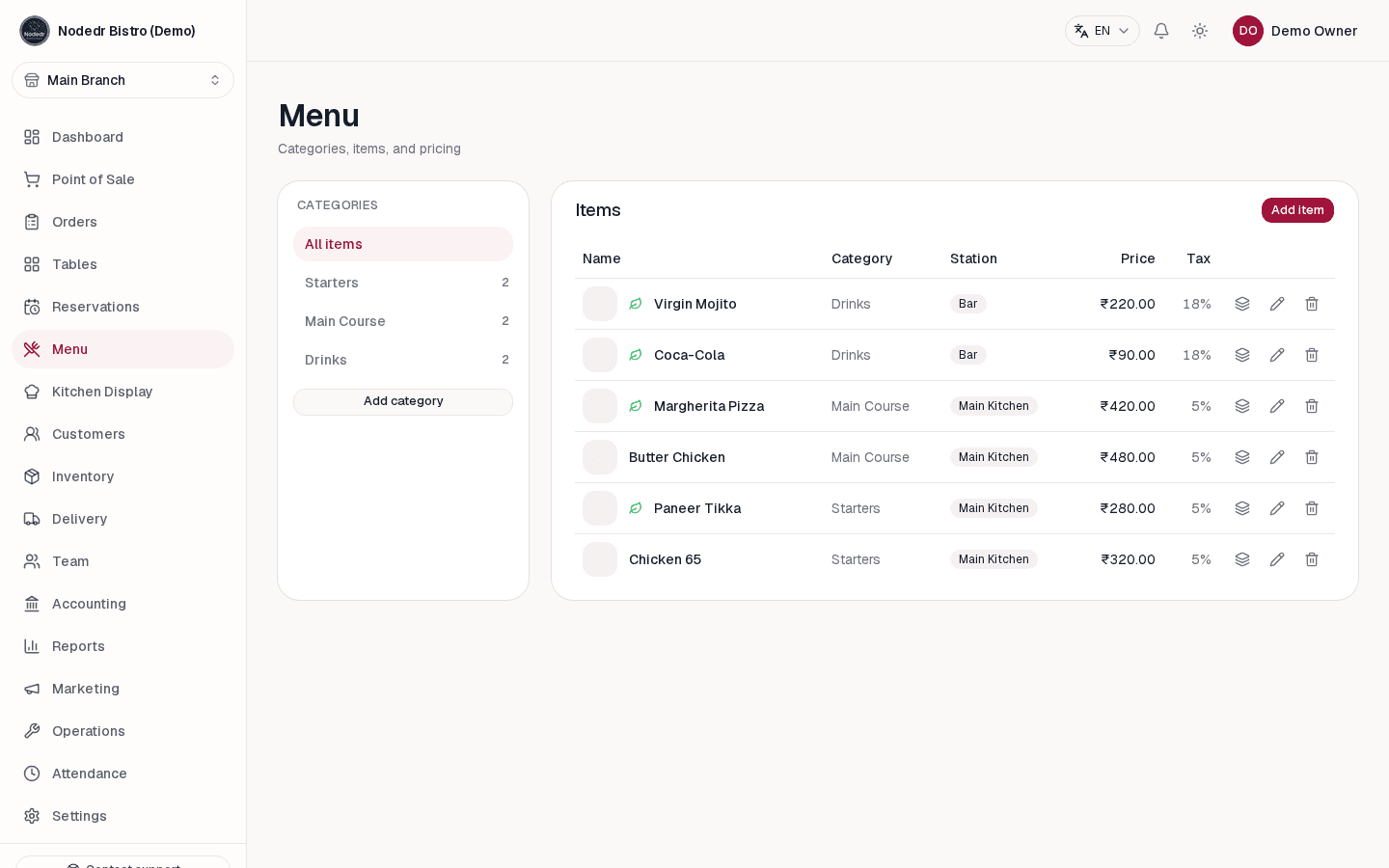
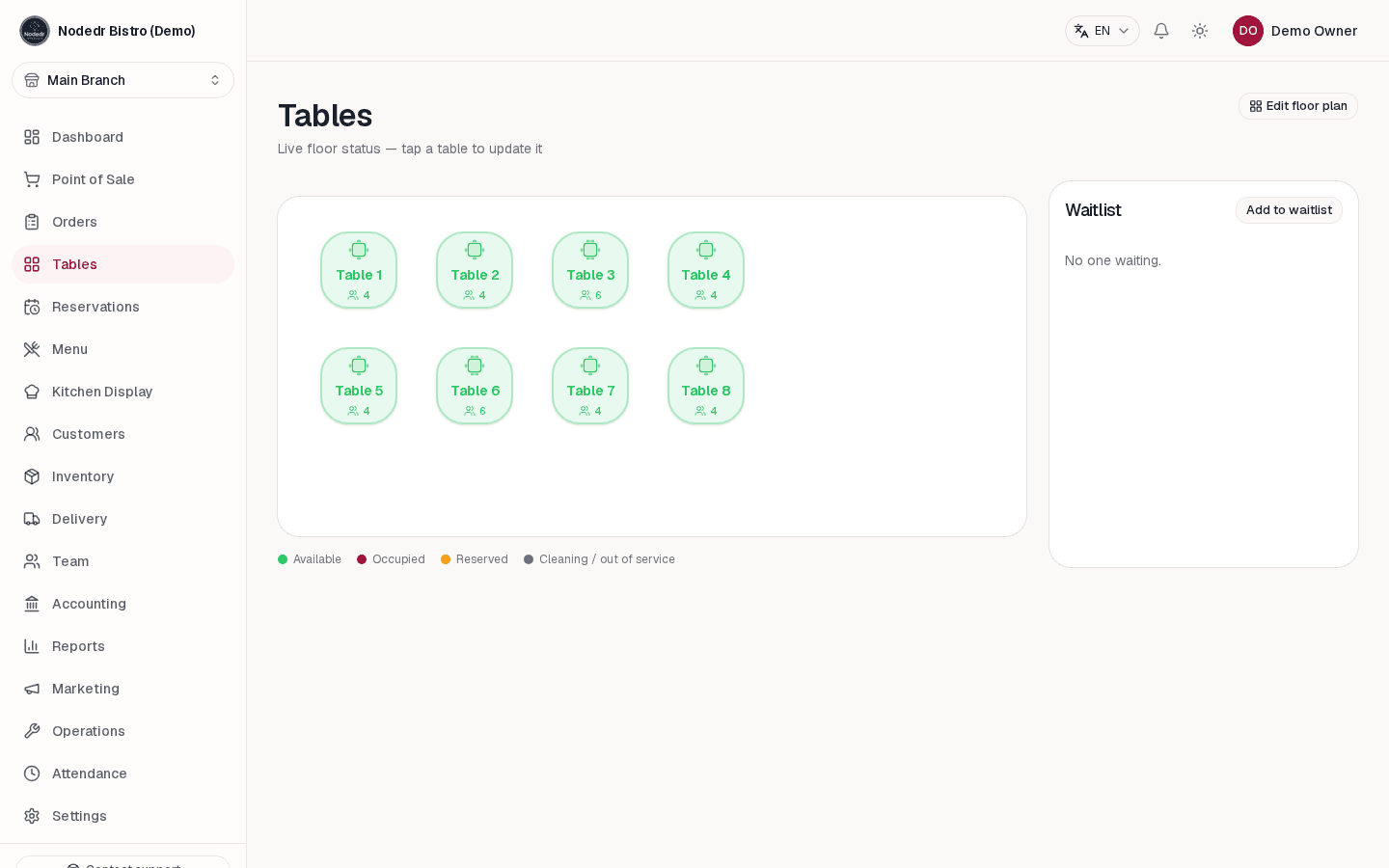
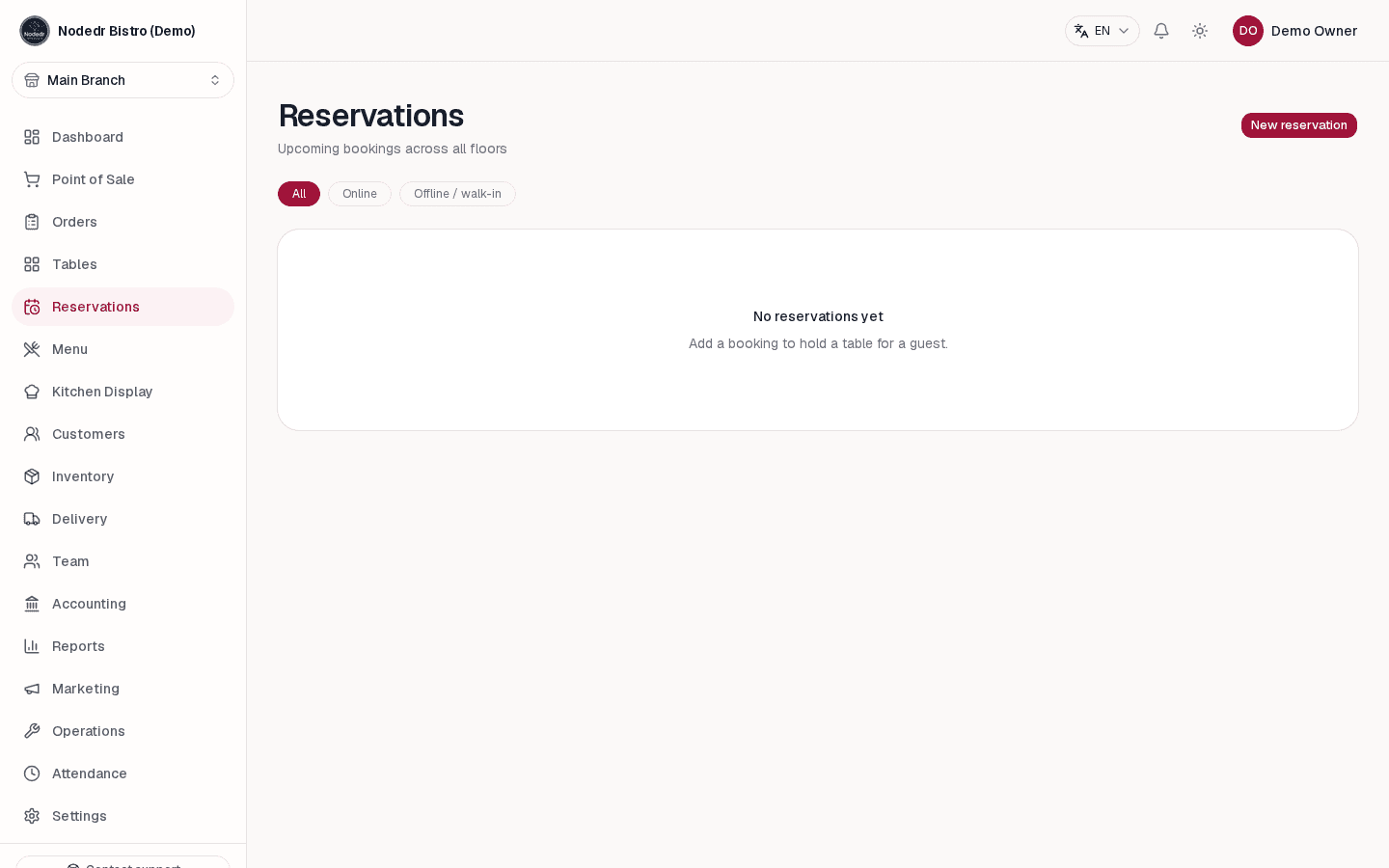
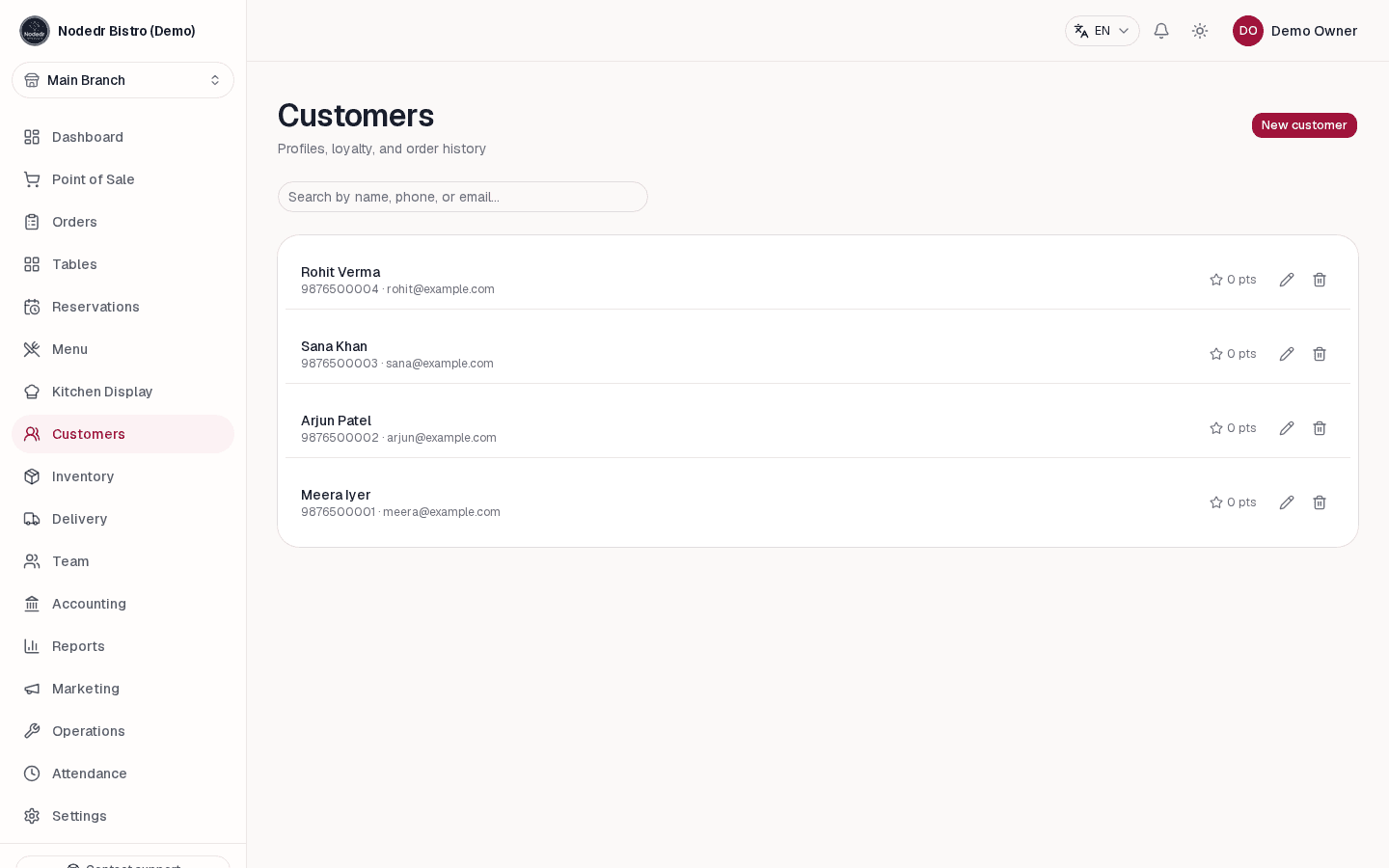
Add menu categories, dishes, prices, modifiers and combos. Then set up floors and tables. Add reservations and customer details as they come in; these records connect directly to the floor and checkout.

  • Create categories and menu items
  • Add sizes, extras and combos
  • Set up floors, tables and reservations
OrderRestro menu management showing restaurant menu items
Create the menu
OrderRestro visual restaurant floor plan with table statuses
Arrange the floor and tables
OrderRestro reservation list for managing guest bookings
Keep bookings with the floor plan
OrderRestro customer list for guest profiles and loyalty
Keep guest details and loyalty together
04During service

Ring up an order

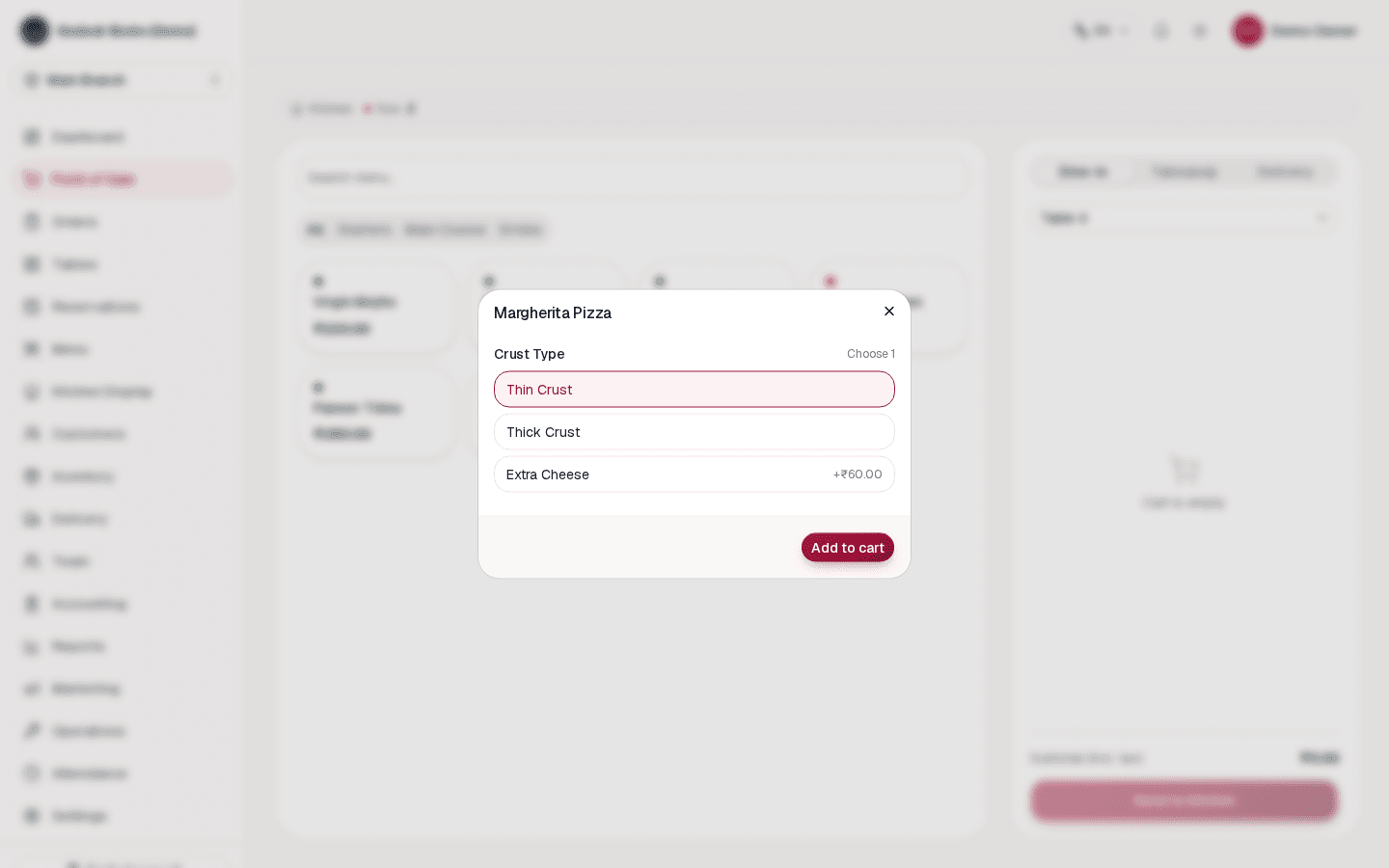
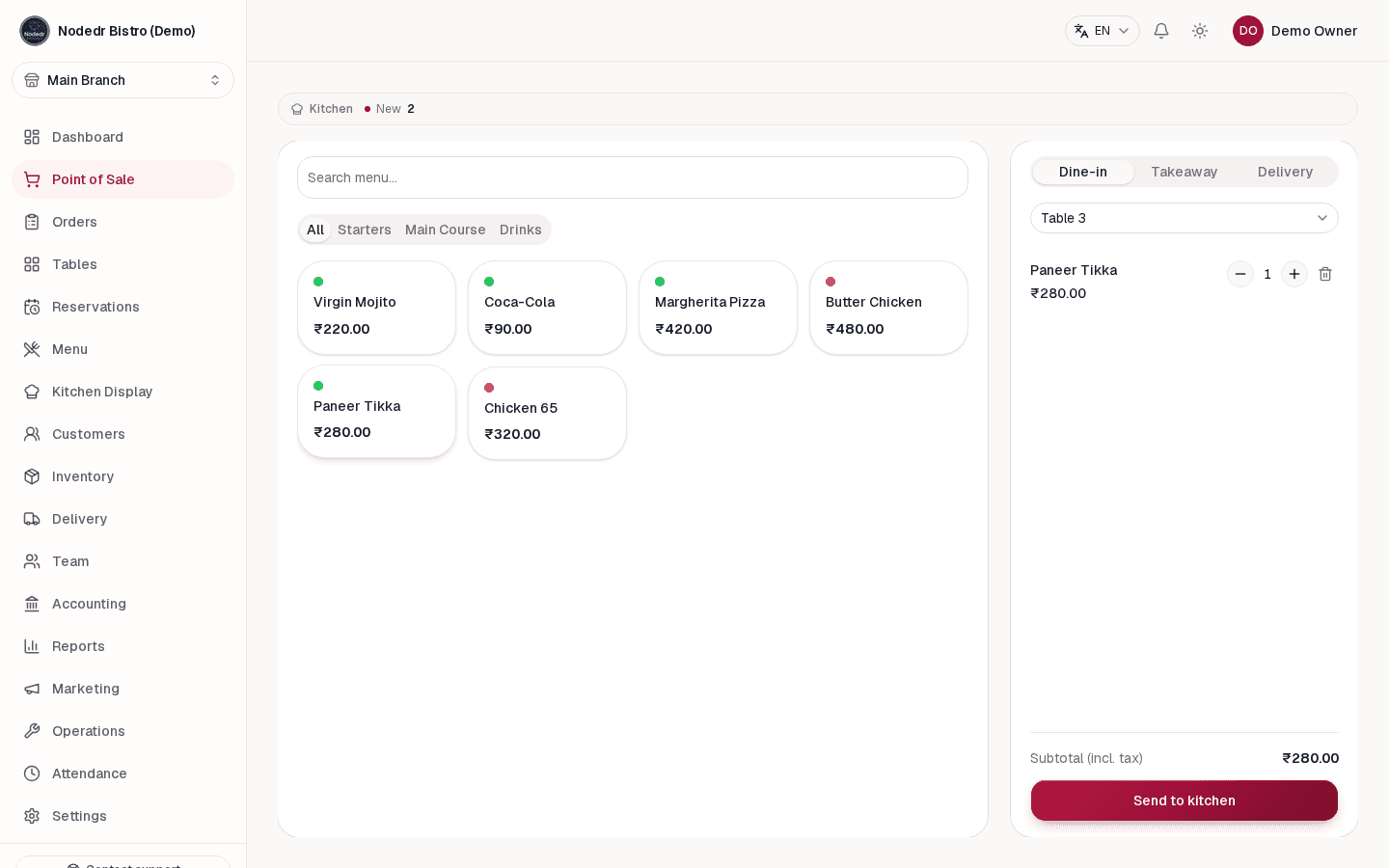
Open Point of Sale, choose dine-in, takeaway or delivery, then select a table when needed. Tap dishes, choose their modifiers, review the cart and send the order to the kitchen. You can return to an open bill later.

  • Choose an order type or table
  • Add dishes and their options
  • Review the cart and send to kitchen
OrderRestro point of sale item modifier selection
Choose item options
OrderRestro point of sale order cart before sending to the kitchen
Check the order before sending
05Kitchen and checkout

Prepare the ticket and take payment

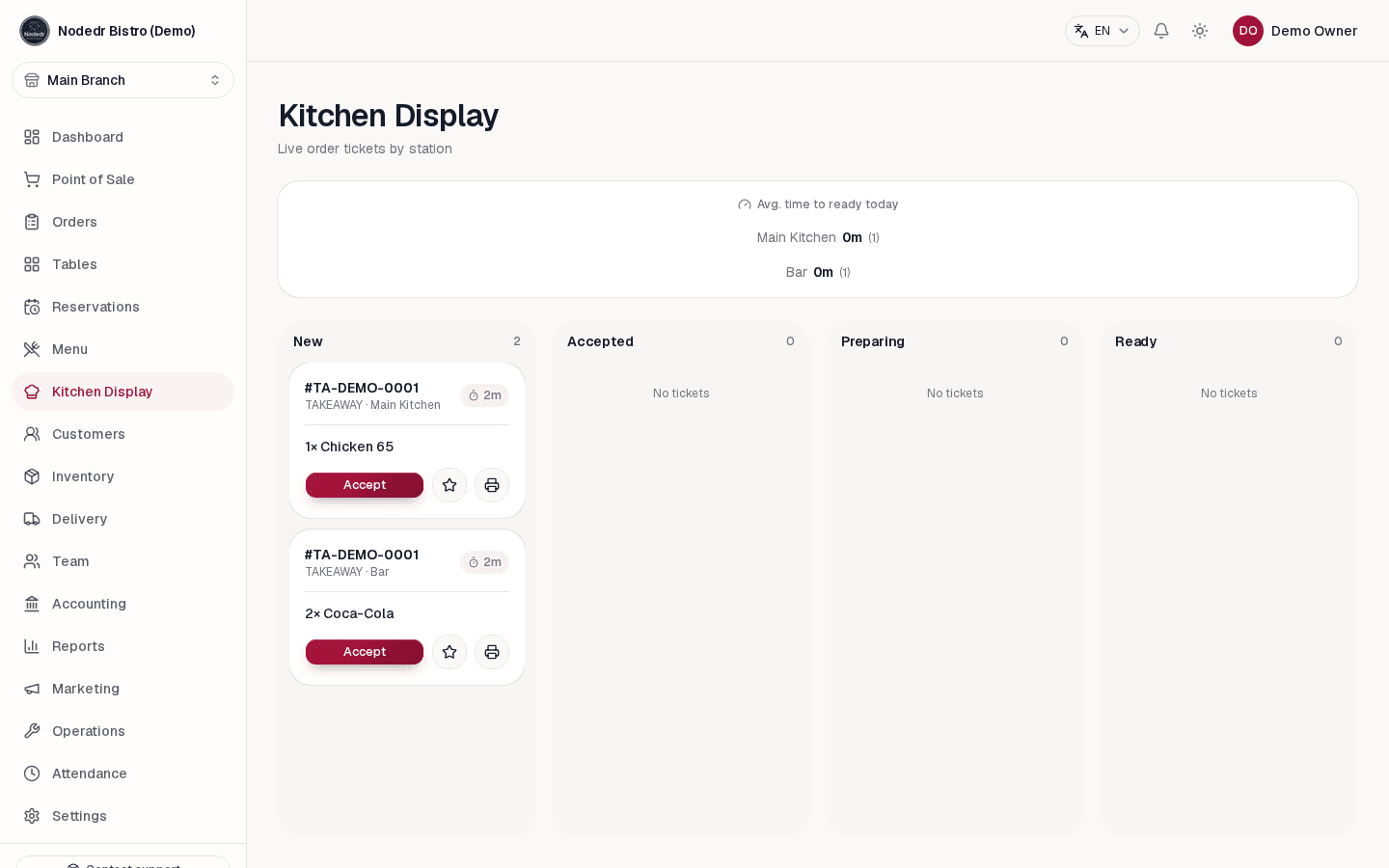
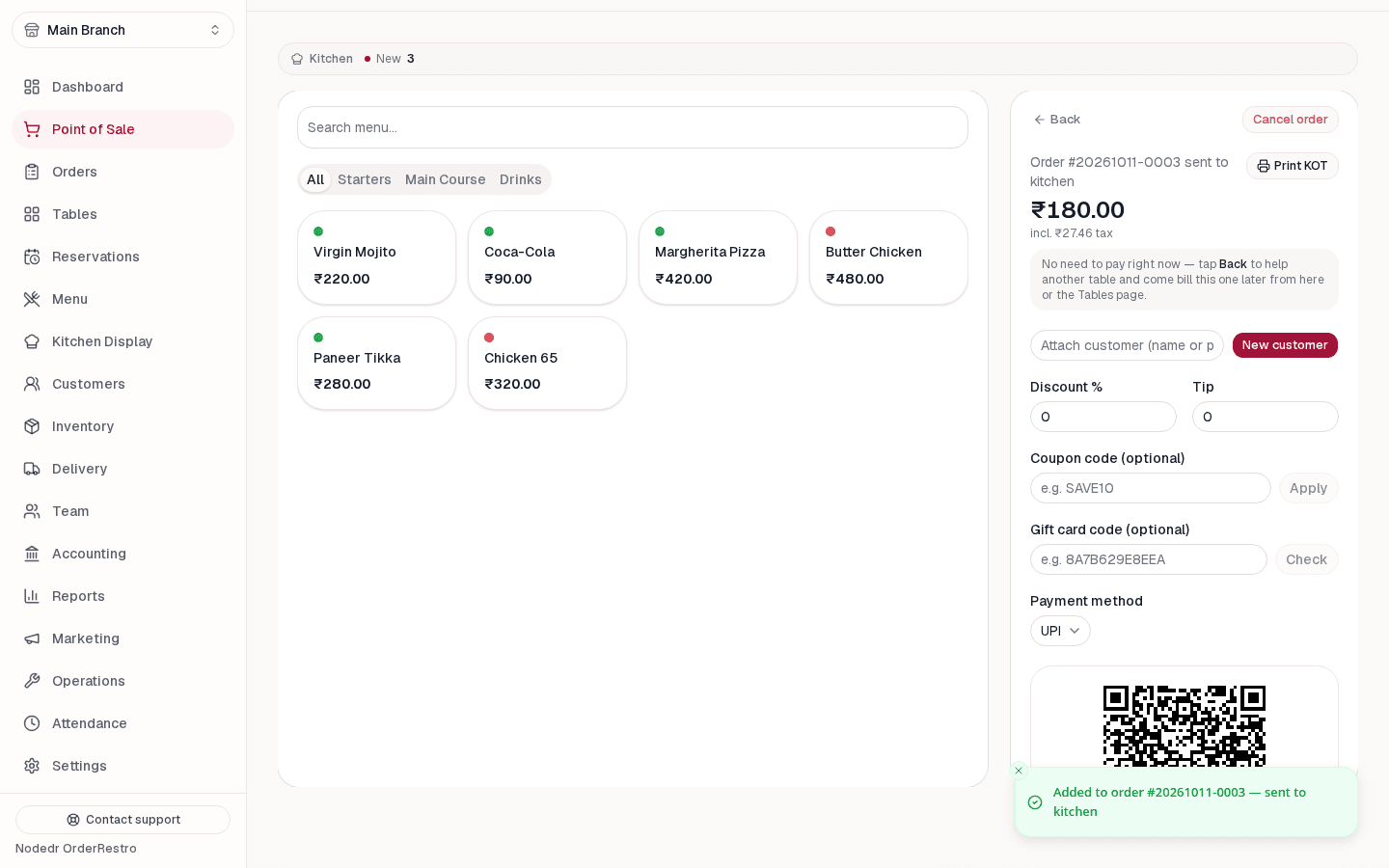
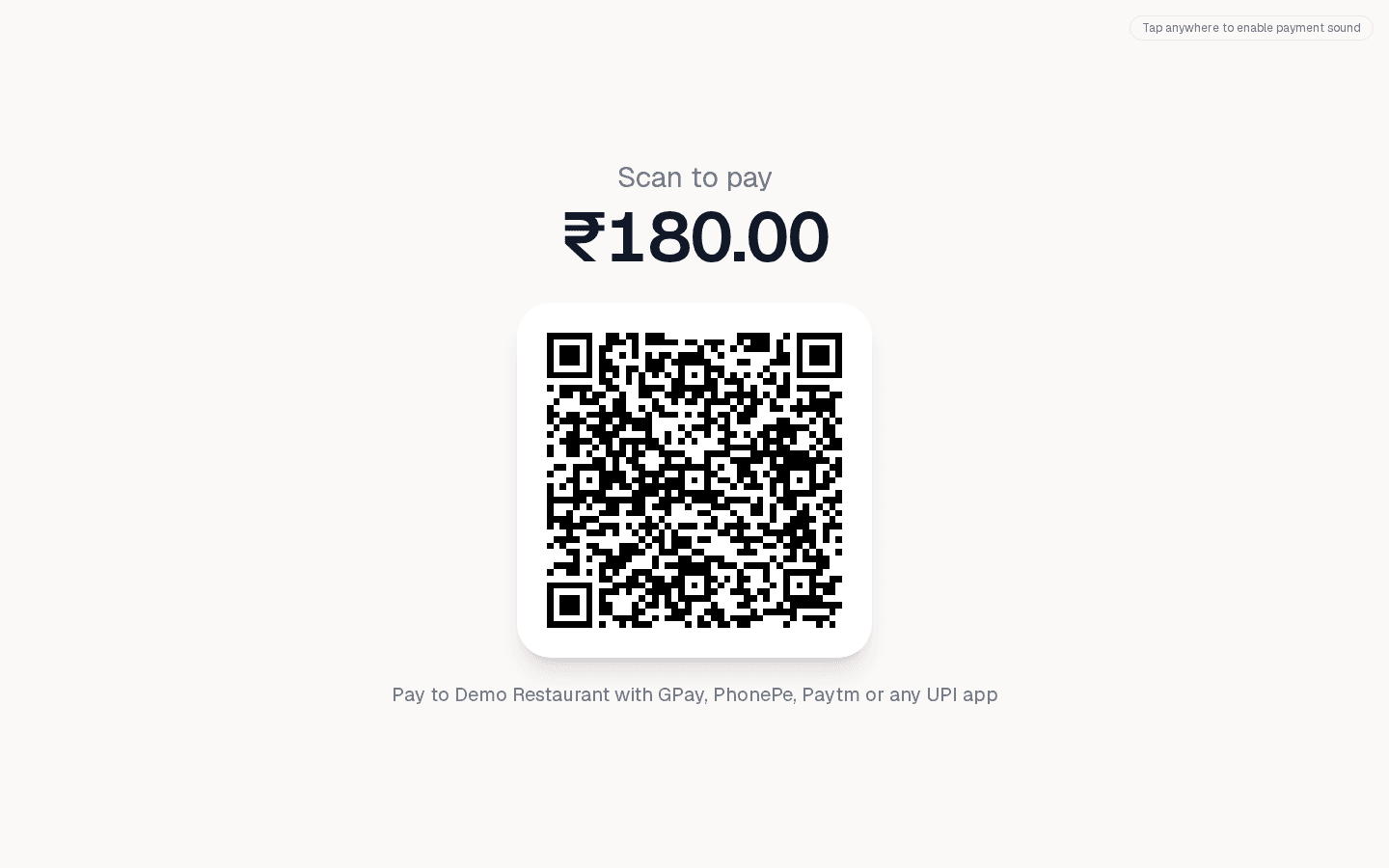
Kitchen tickets appear on the live Kitchen Display. Staff can accept, prepare and mark tickets ready. At checkout, take cash, card or UPI. For UPI, the till and customer display show a QR for the exact bill amount; the cashier confirms receipt after checking the payment app or soundbox.

  • Follow the live kitchen ticket
  • Choose the payment method
  • Verify UPI receipt before completing
OrderRestro Kitchen Display with live order tickets
Kitchen tickets update live
OrderRestro checkout showing a QR code for the bill's exact UPI amount
Exact-amount UPI QR at checkout
OrderRestro customer-facing display showing the UPI payment QR
Show the QR on a customer display
06After service

Review stock, sales and the shift

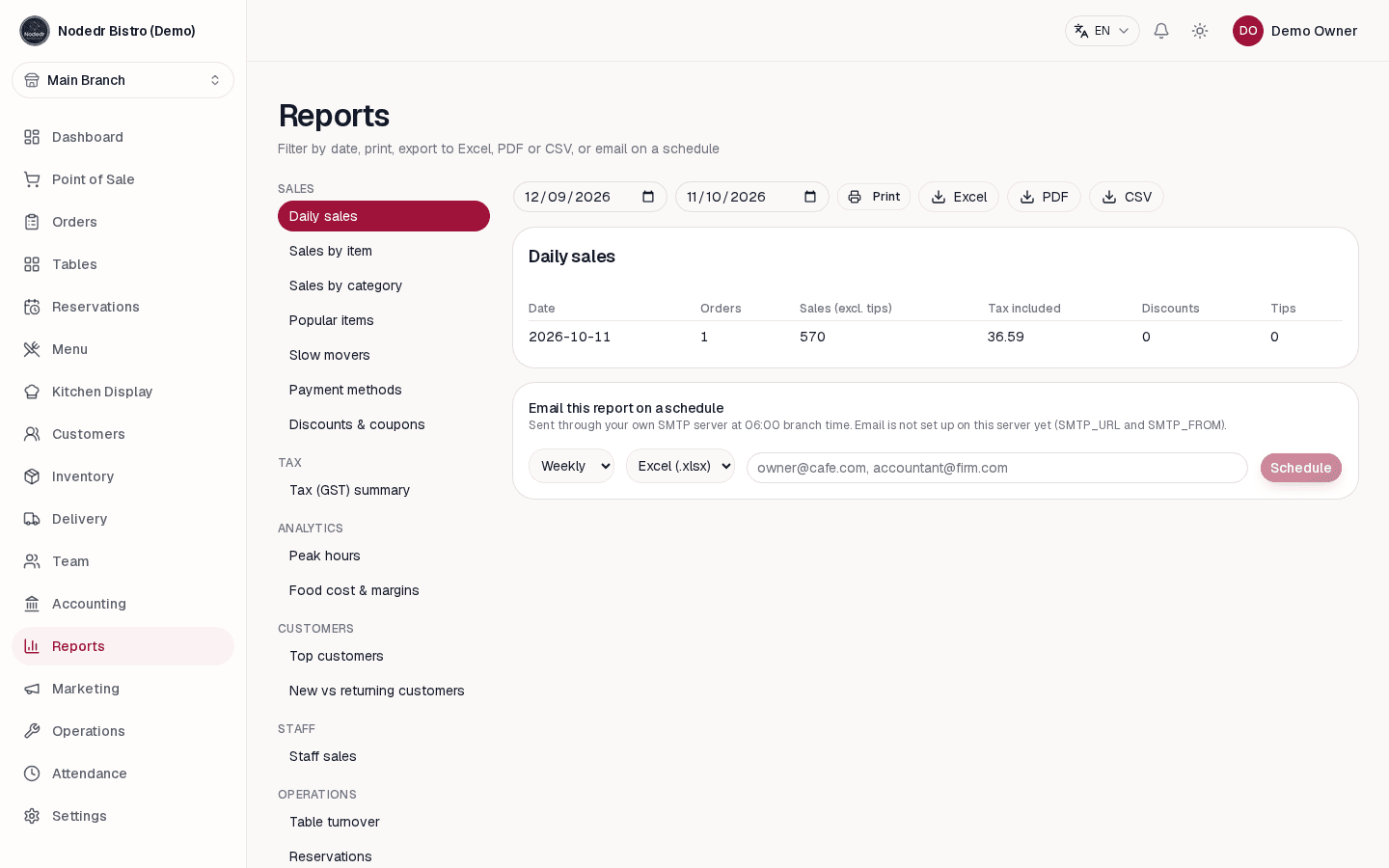
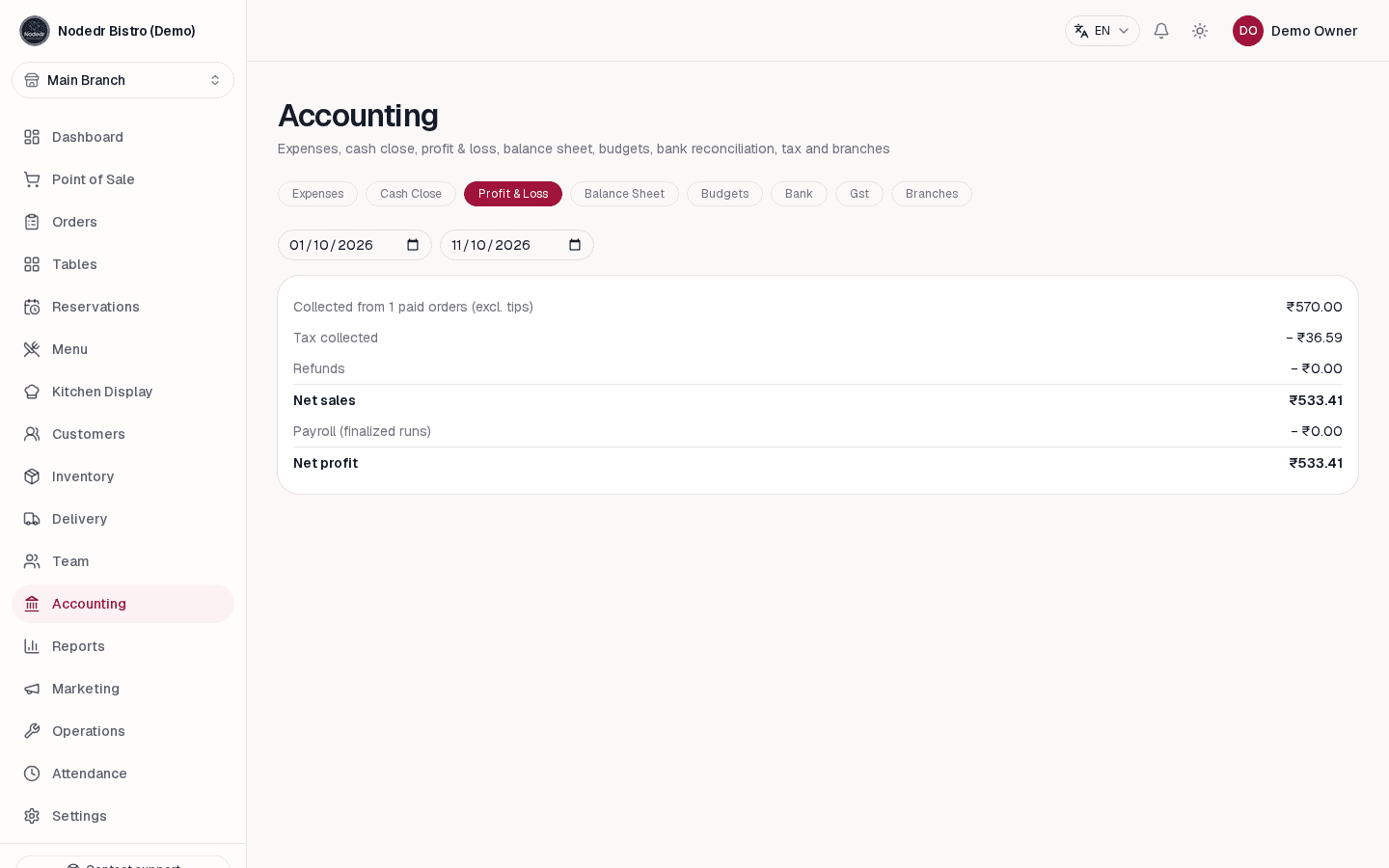
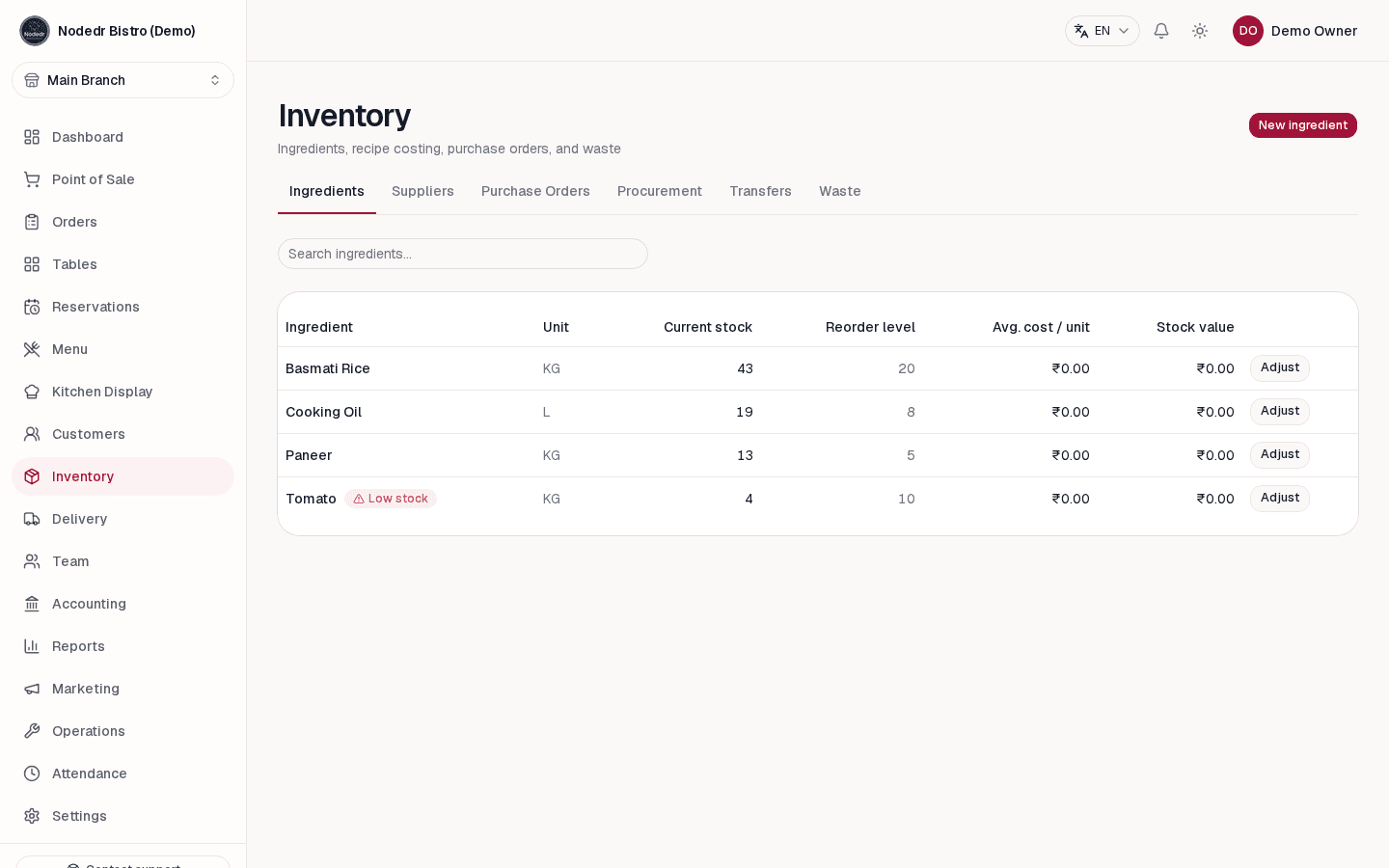
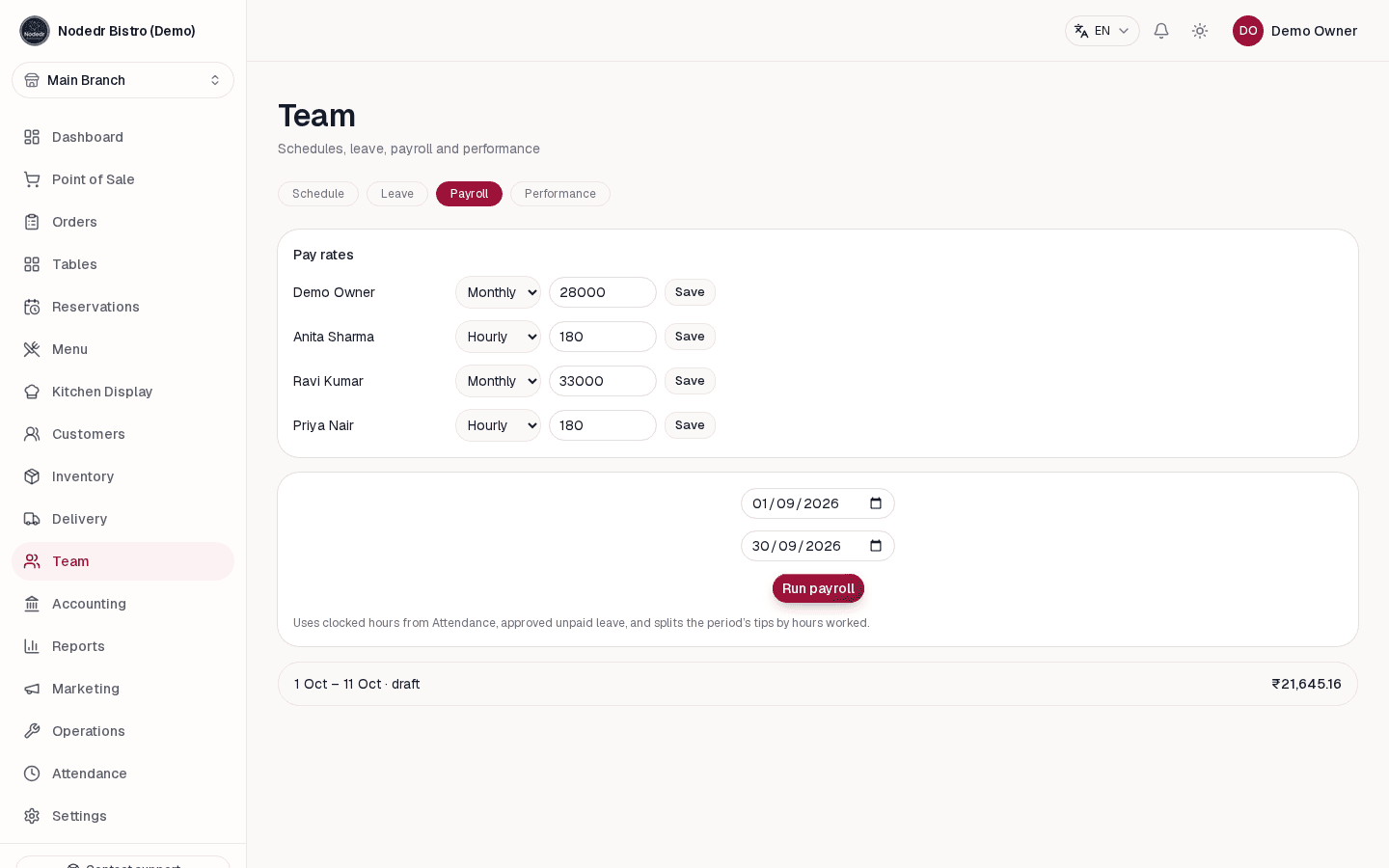
Use Inventory to track ingredients, purchase orders and waste. Reports summarize sales, popular items, margins and busy periods. Team and accounting screens help with attendance, payroll, expenses and the nightly cash close.

  • Review ingredient levels and replenishment
  • Check sales and margin reports
  • Close cash and review the shift
OrderRestro ingredient inventory with stock and low-stock information
Track ingredients and stock
OrderRestro team management and payroll screen
Review hours and payroll
OrderRestro sales reports and restaurant performance overview
Review sales and performance
OrderRestro accounting profit and loss report
Review the financial picture
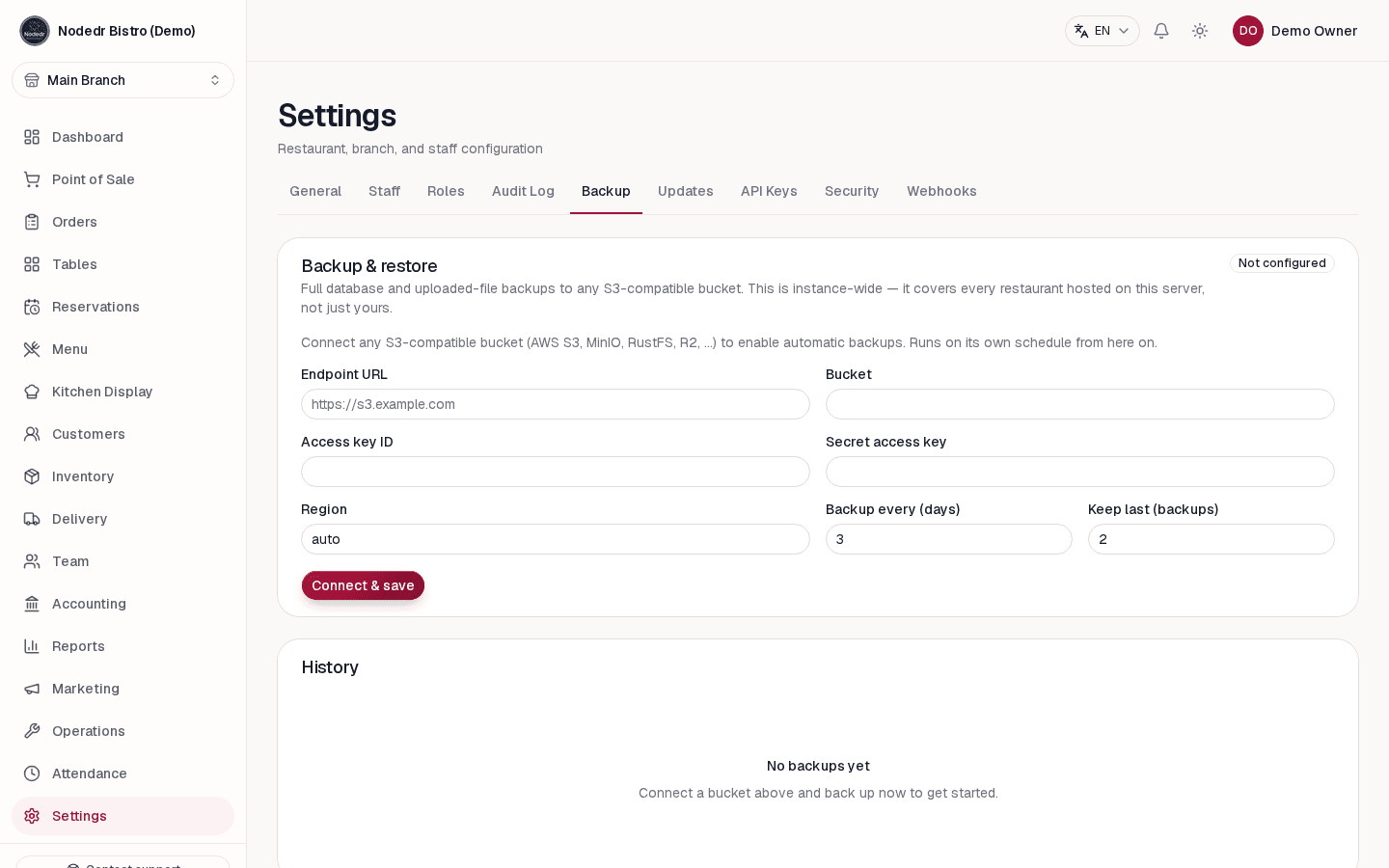
OrderRestro backup and restore settings
Keep a restorable backup
More tools, same workspace

Explore every restaurant management feature

See how OrderRestro handles guest ordering, stock, staffing, accounting, marketing and integrations. Every image below is a real product screen.

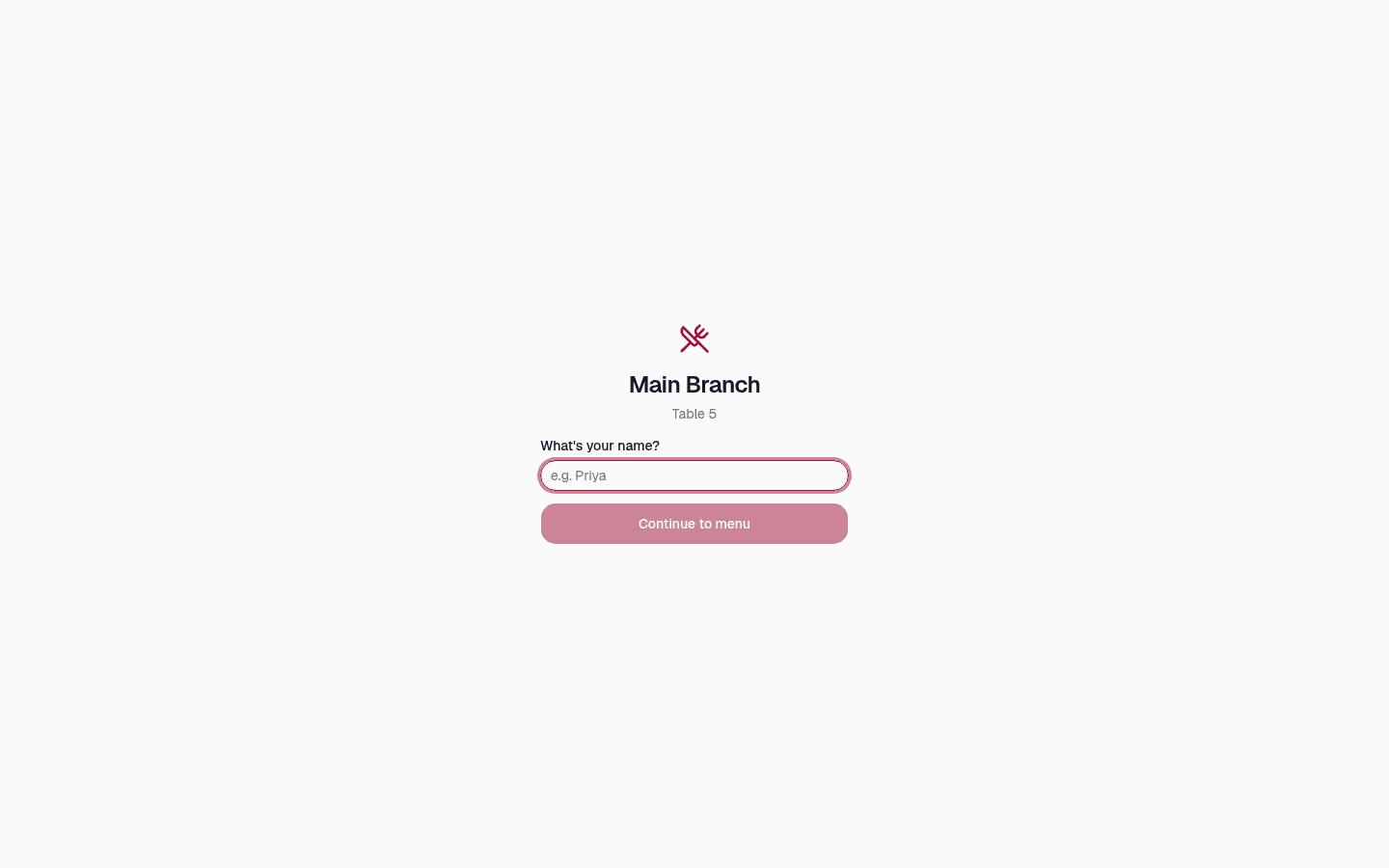
Online ordering, QR menus and delivery

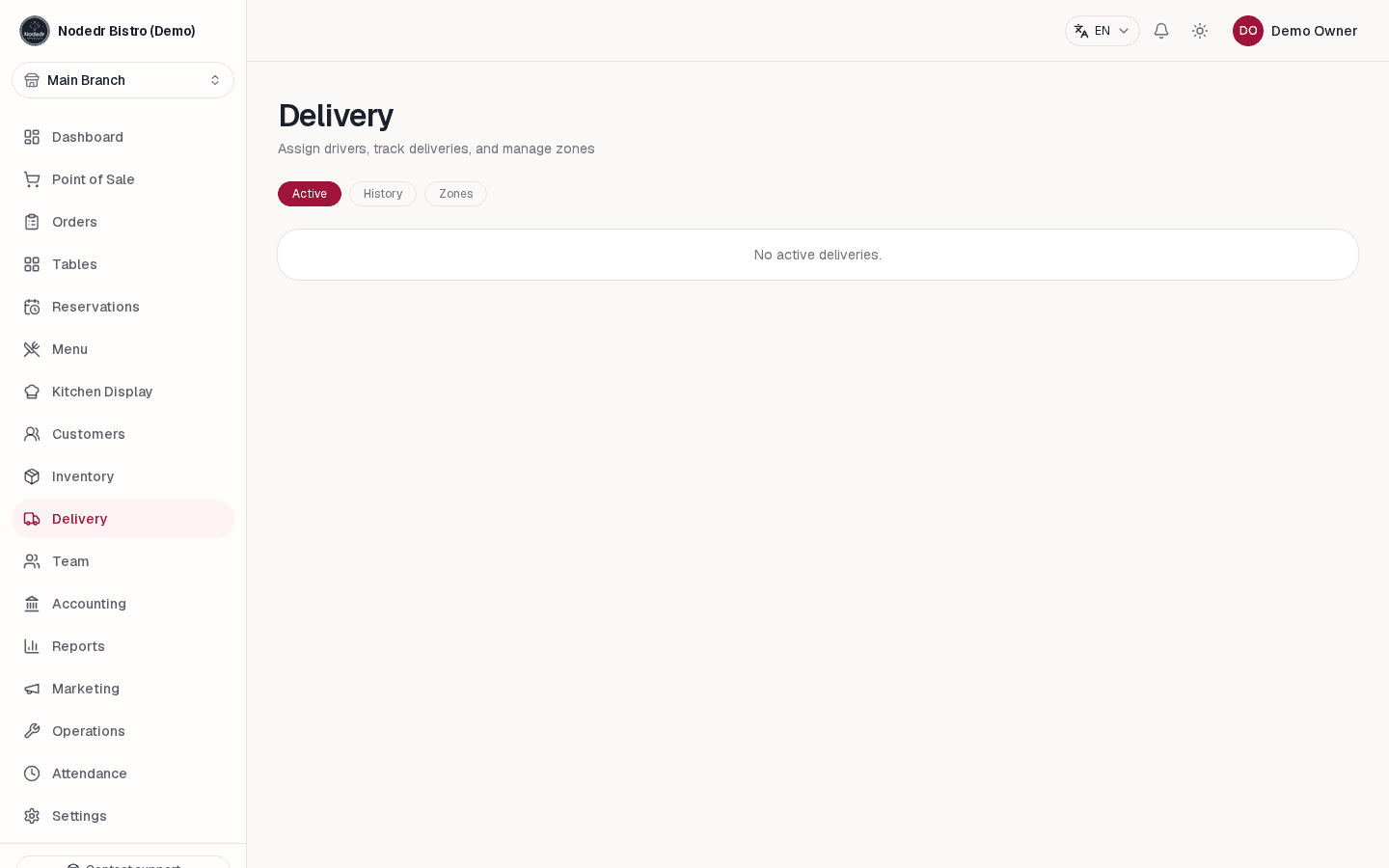
Let guests scan a table QR to browse and order. Configure delivery zones, fees and minimums, then assign drivers and follow delivery status.

Guest-facing restaurant menu opened from a table QR code
QR ordering for dine-in guests
OrderRestro delivery management with delivery orders and status
Track and manage deliveries

Inventory, vendors and purchasing

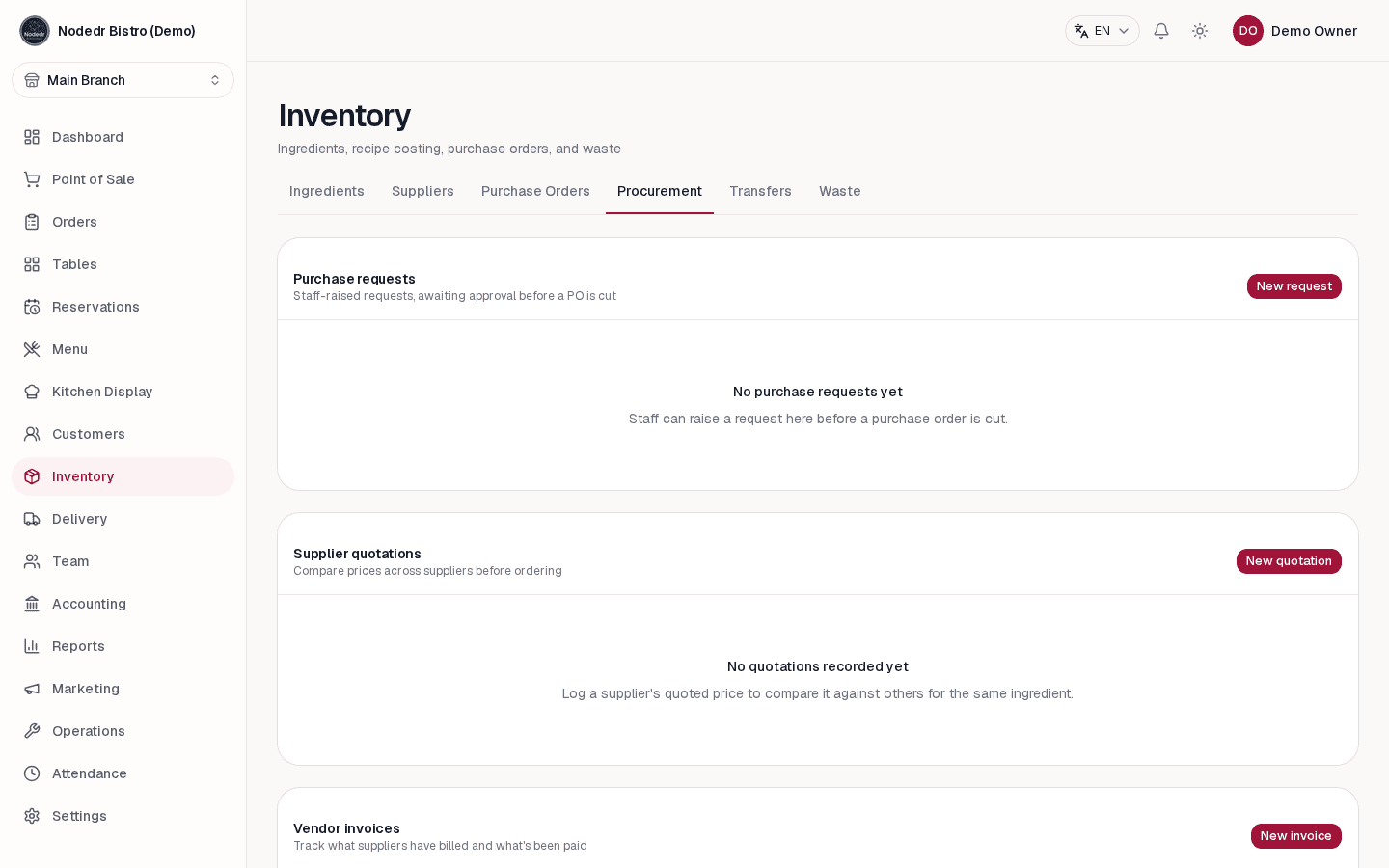
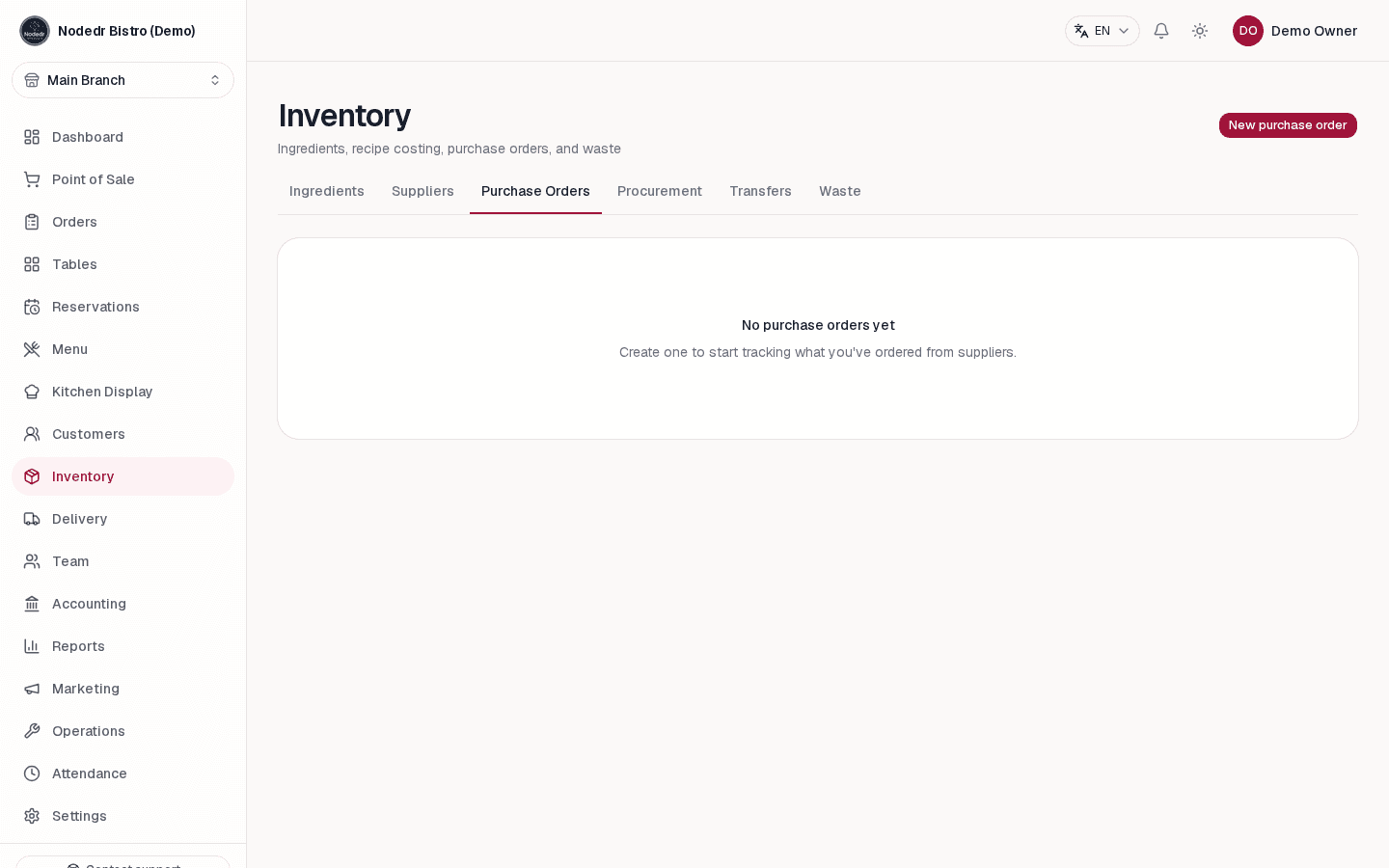
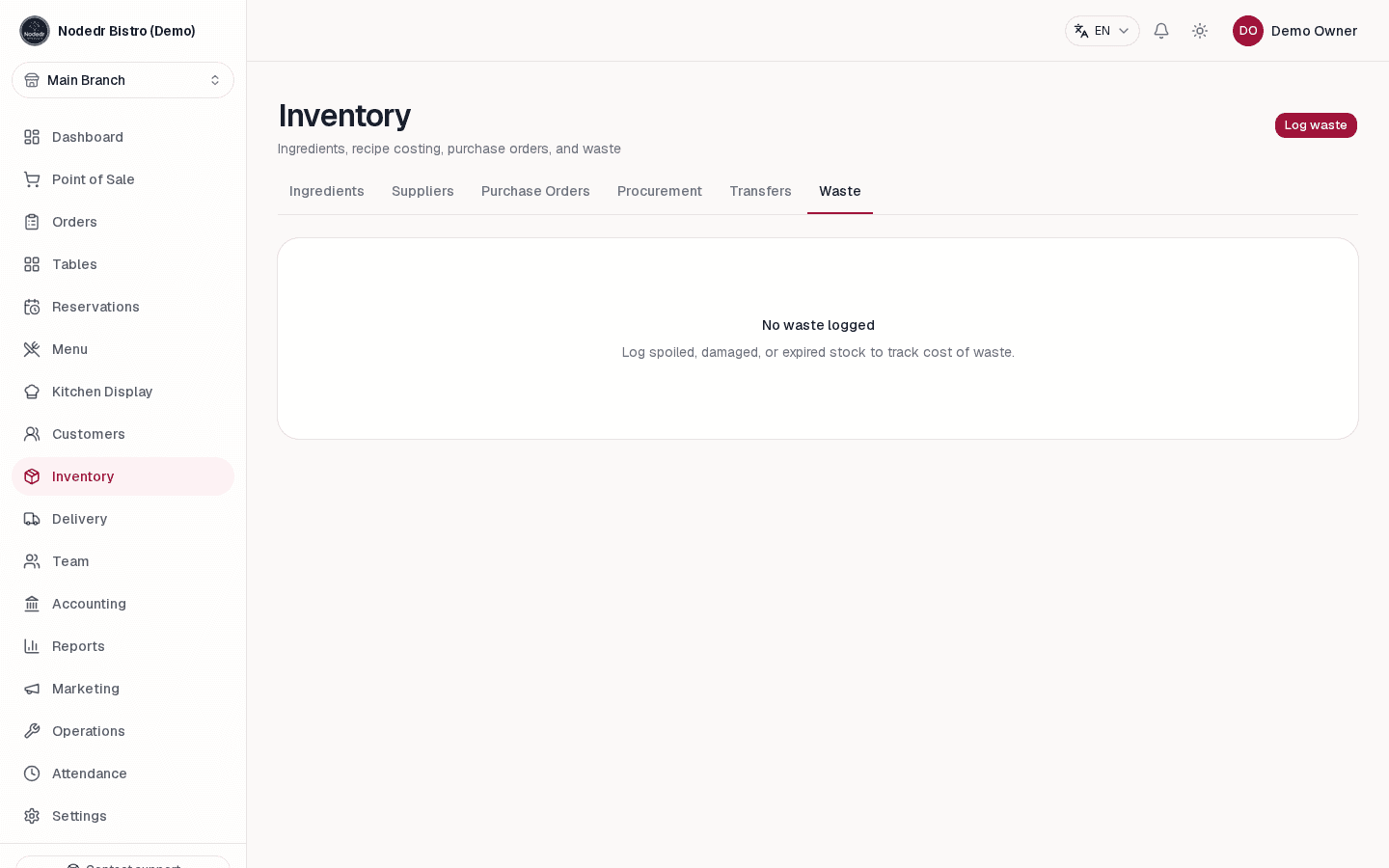
Connect ingredients to recipes, receive stock against purchase orders, compare vendor quotations and log waste to understand food cost.

OrderRestro inventory procurement and vendor overview
Manage vendors and procurement
OrderRestro purchase order for replenishing restaurant stock
Create and receive purchase orders
OrderRestro inventory waste log for recording discarded ingredients
Record waste and reduce stock

Staff, schedules and operations

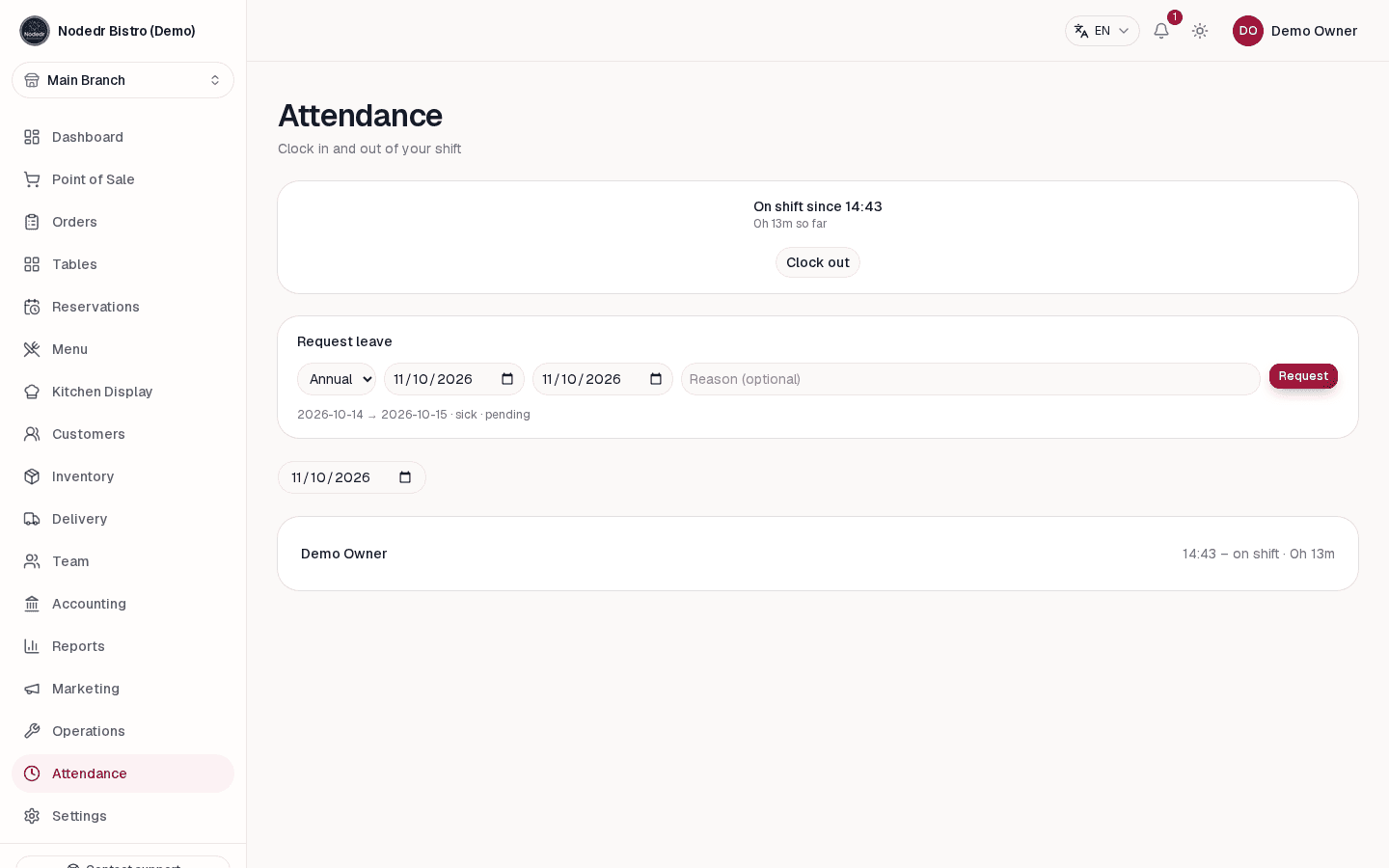
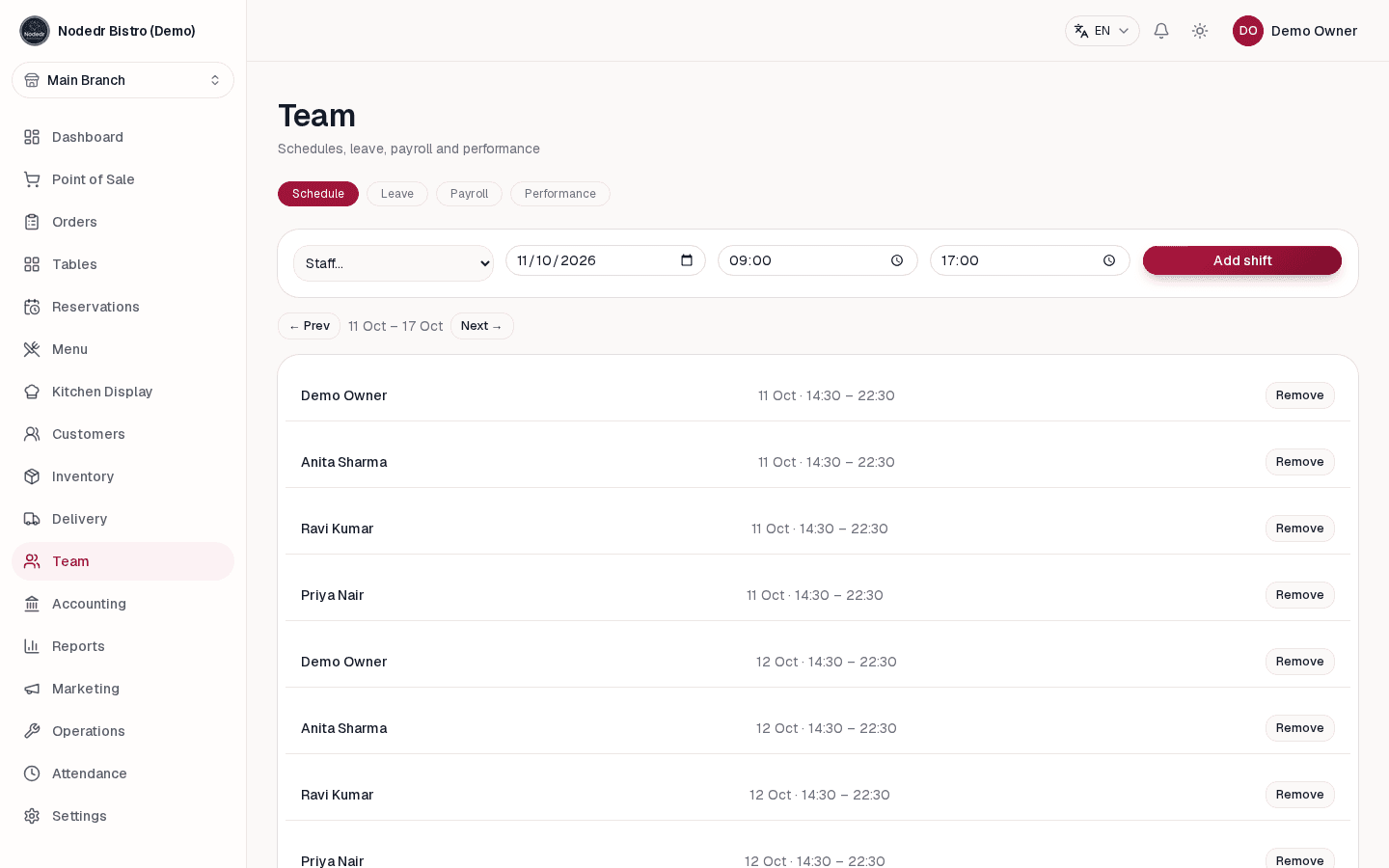
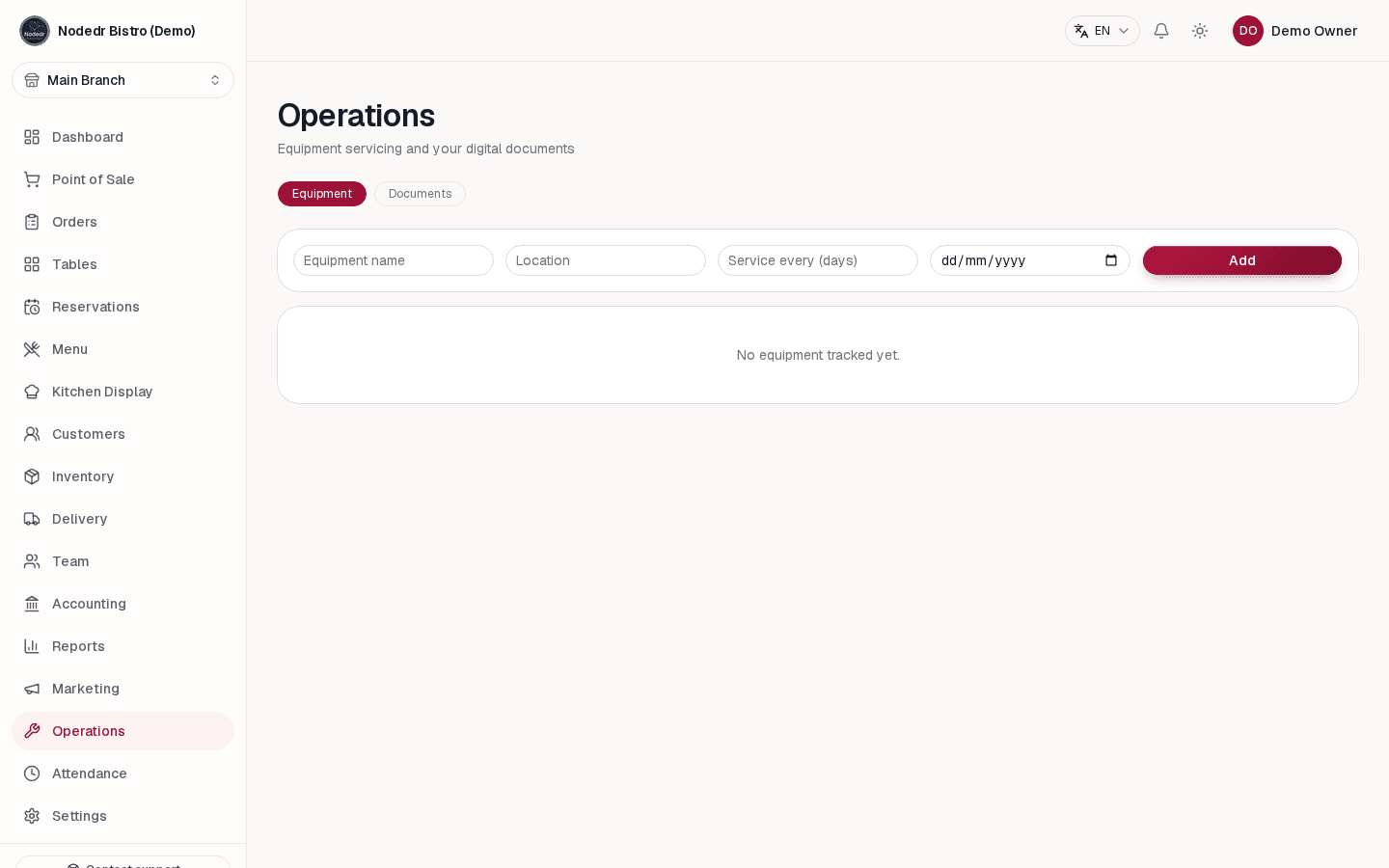
Record attendance, plan shifts, review payroll and keep daily operating documents and equipment checks together.

OrderRestro staff attendance and clock-in records
Review attendance
OrderRestro staff shift schedule calendar
Plan staff shifts
OrderRestro restaurant operations screen for maintenance and documents
Keep operational tasks organized

Accounting, reports and guest marketing

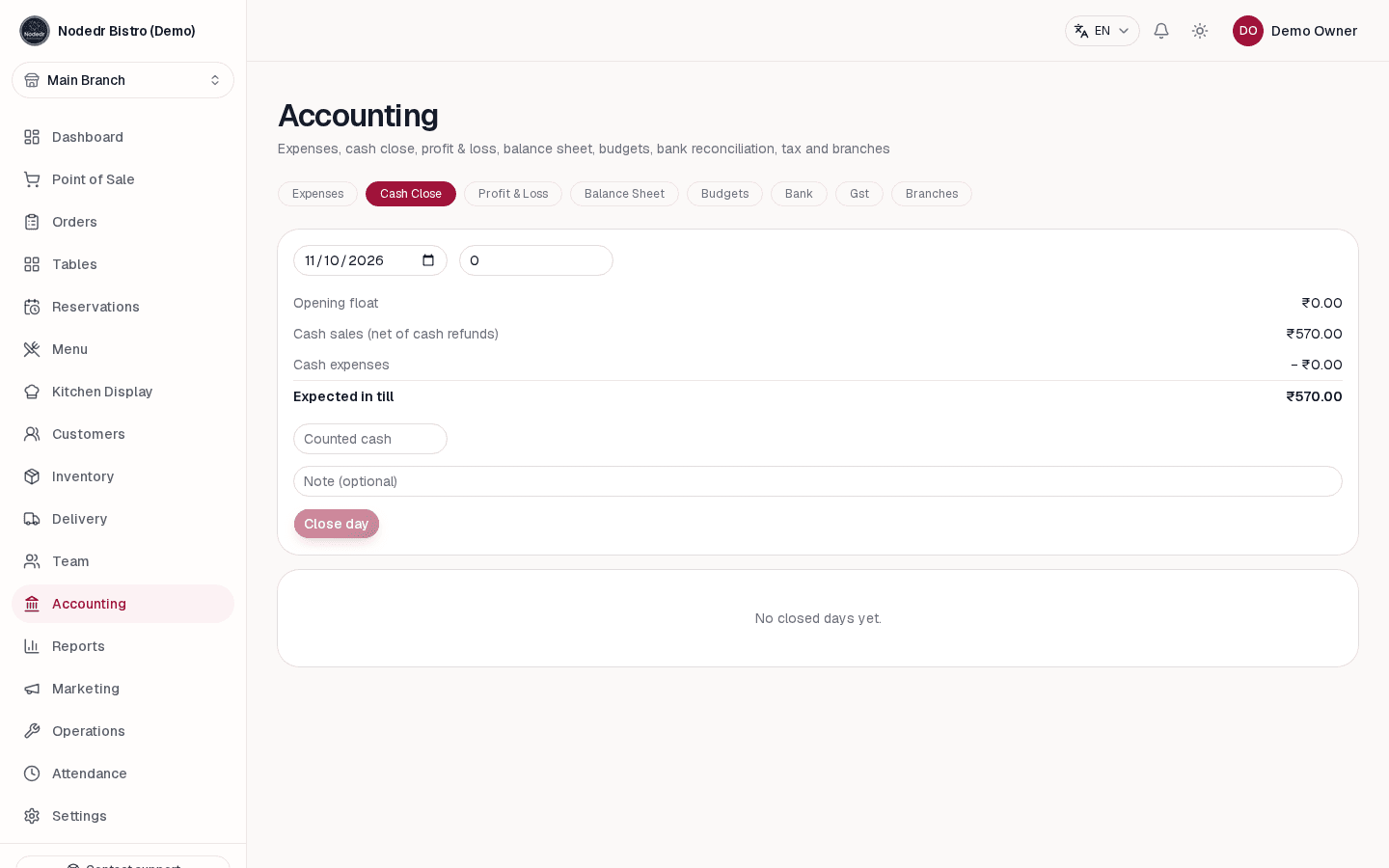
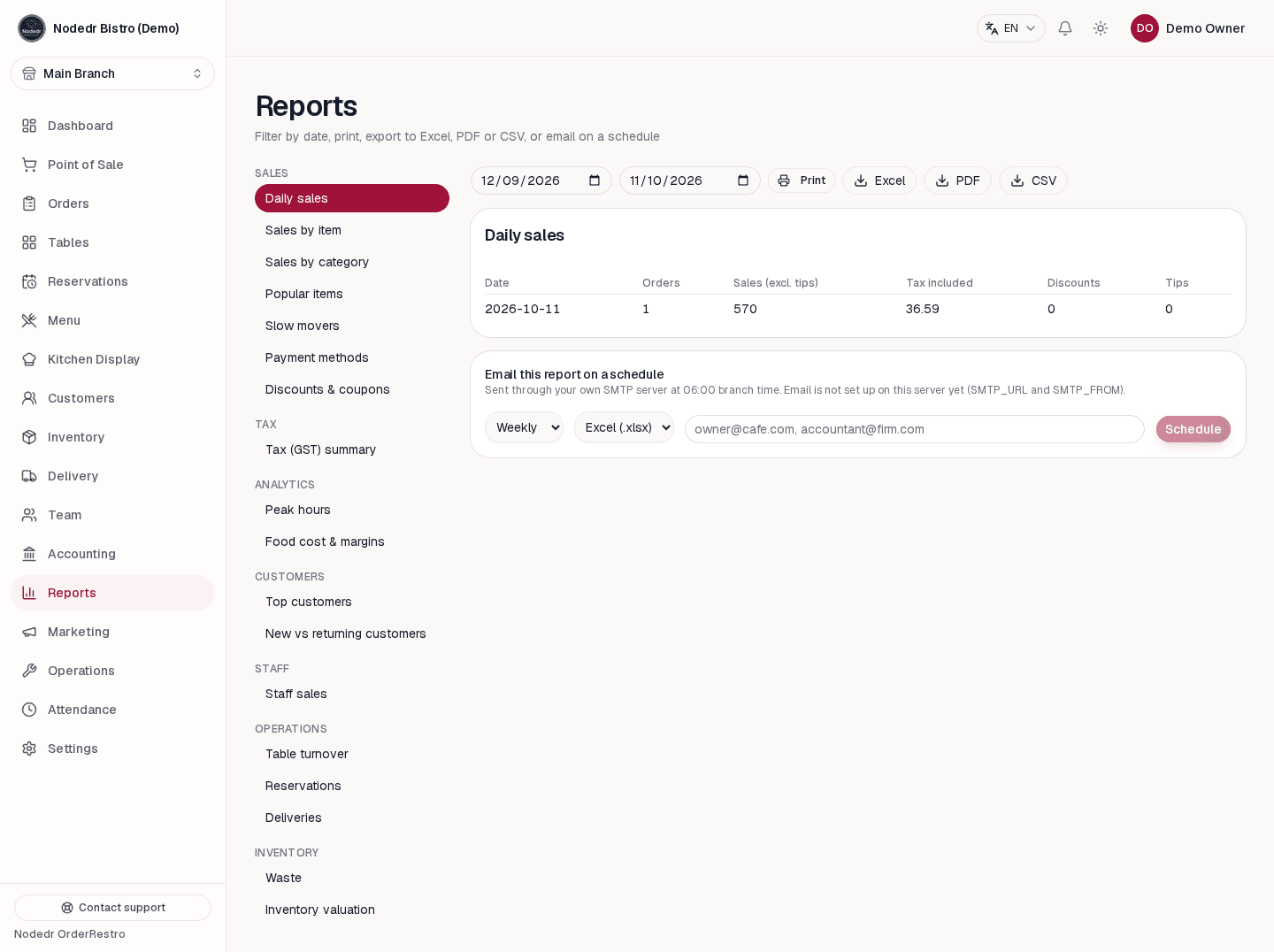
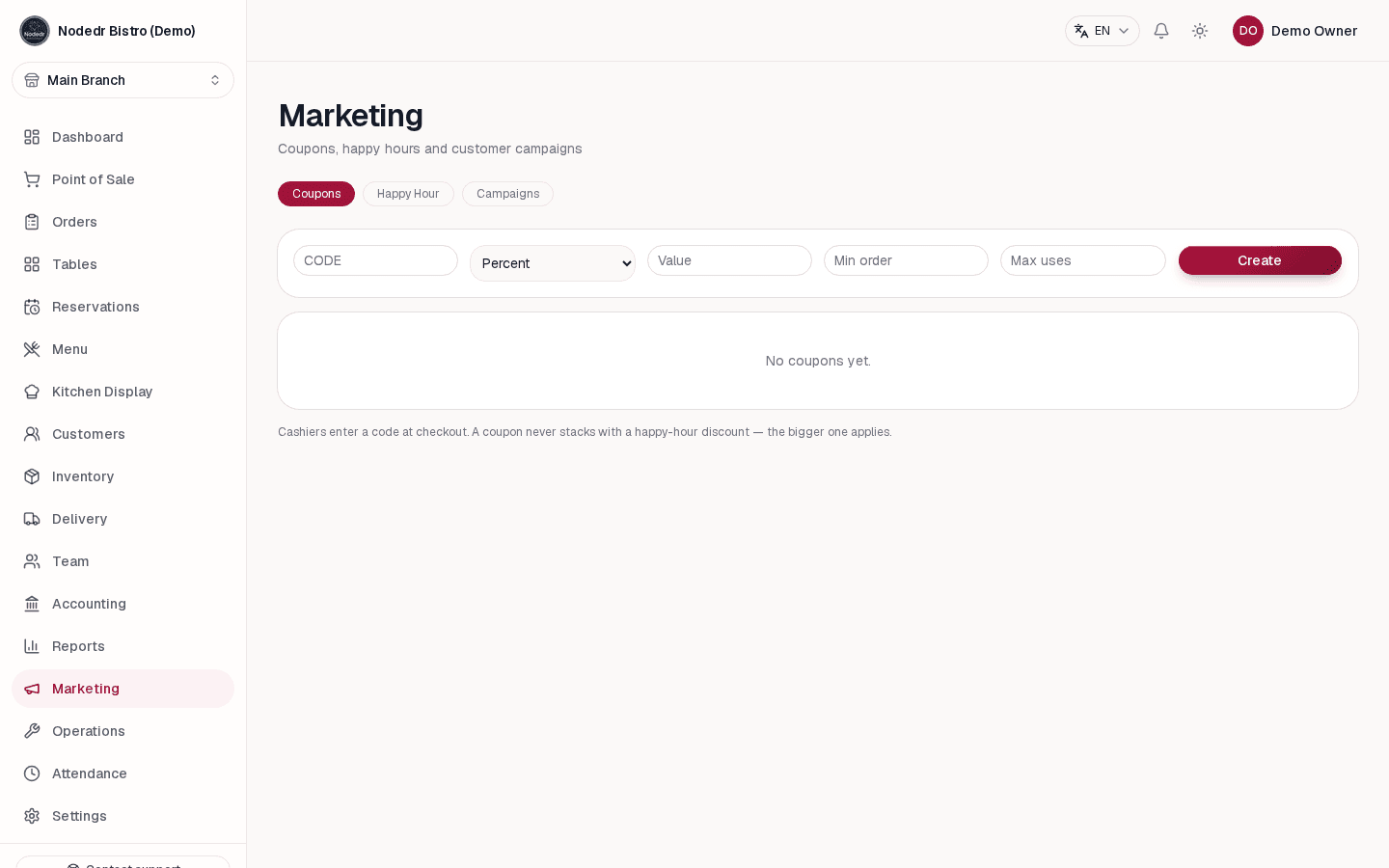
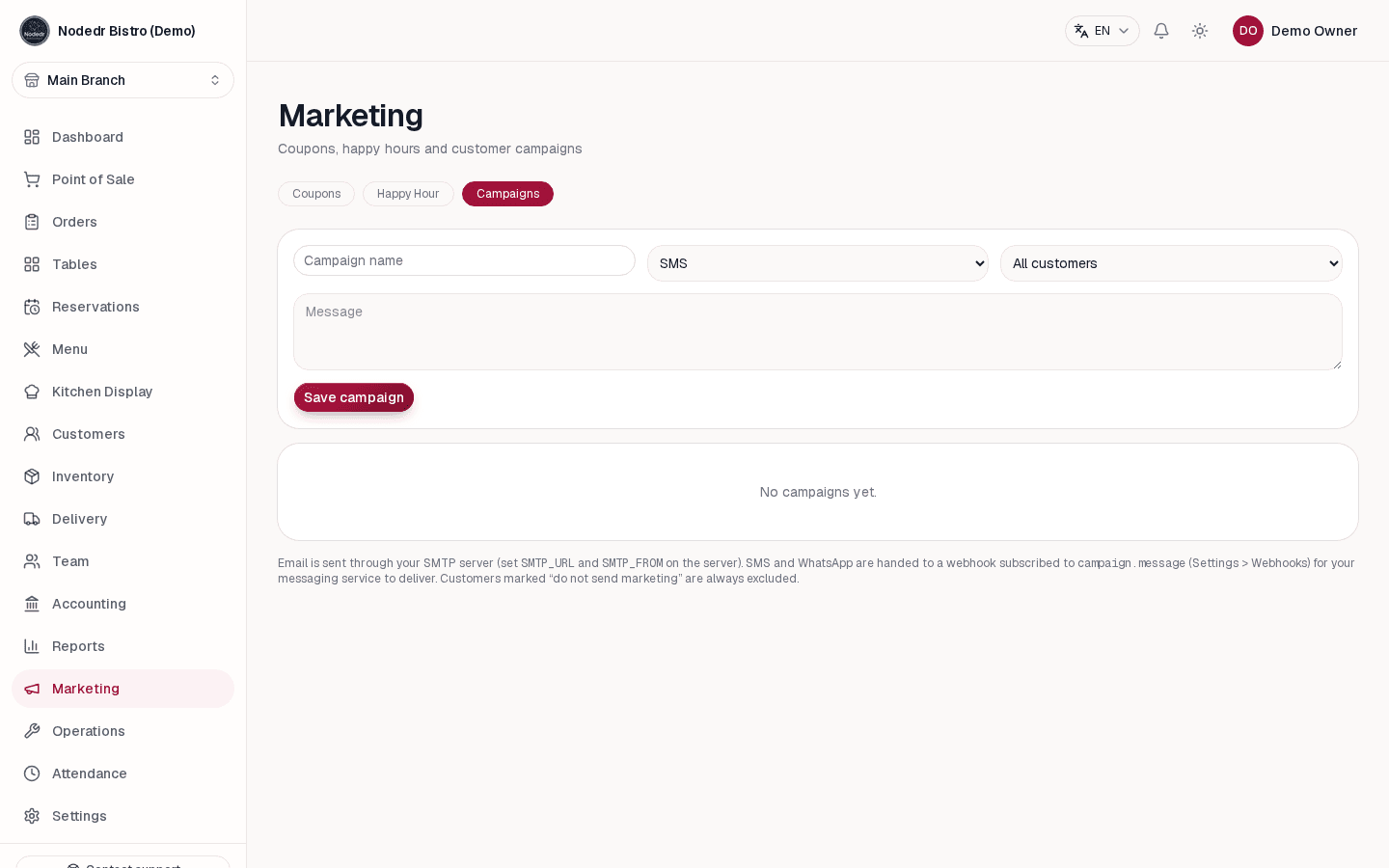
Close out cash, review profit and sales trends, and bring guests back with coupons and campaigns.

OrderRestro cash close screen showing shift reconciliation
Reconcile the till at close
OrderRestro restaurant analytics and detailed sales reports
Explore restaurant performance reports
OrderRestro coupon management for restaurant promotions
Create guest offers
OrderRestro customer marketing campaign management
Build guest campaigns

Security, backups and integrations

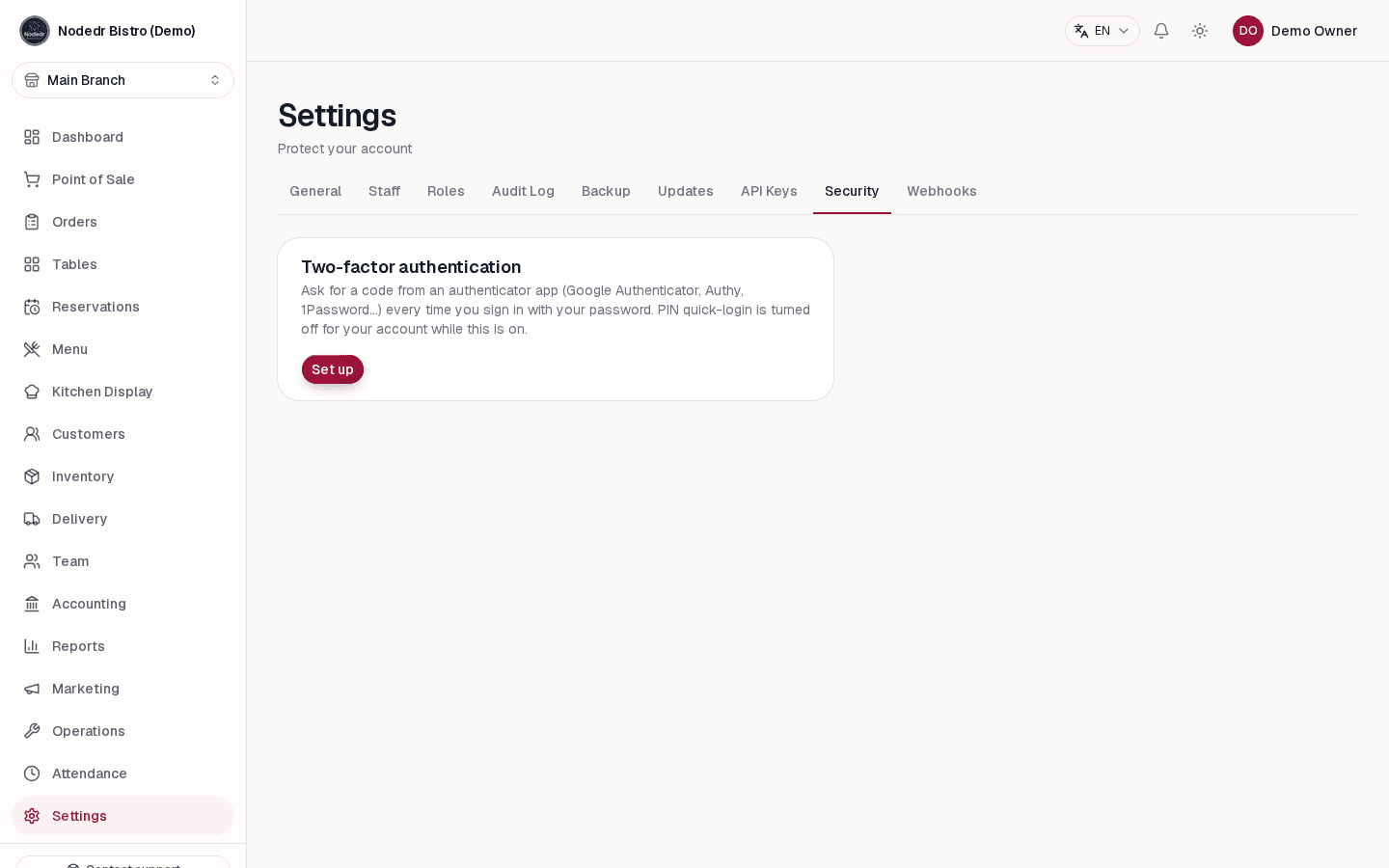
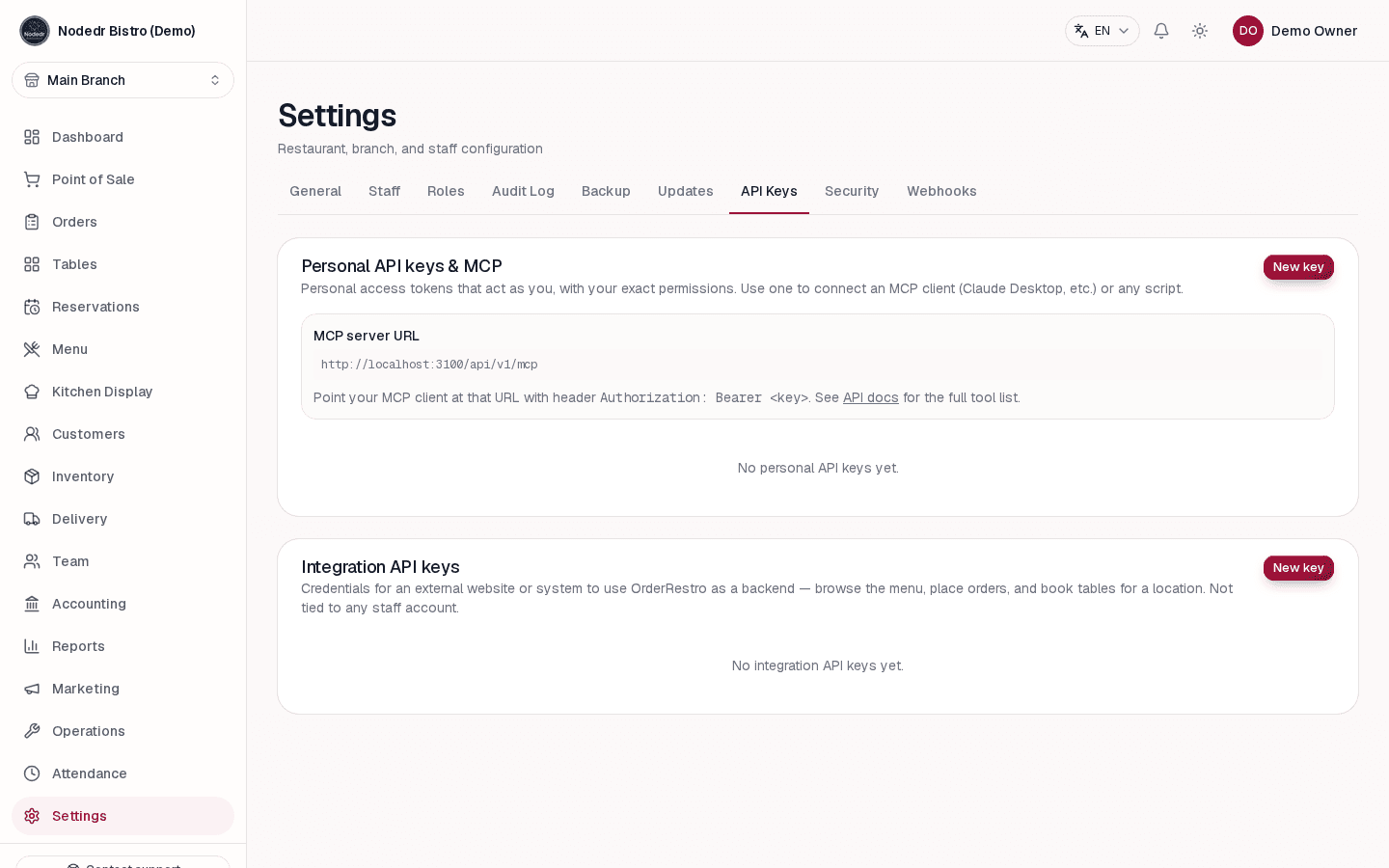
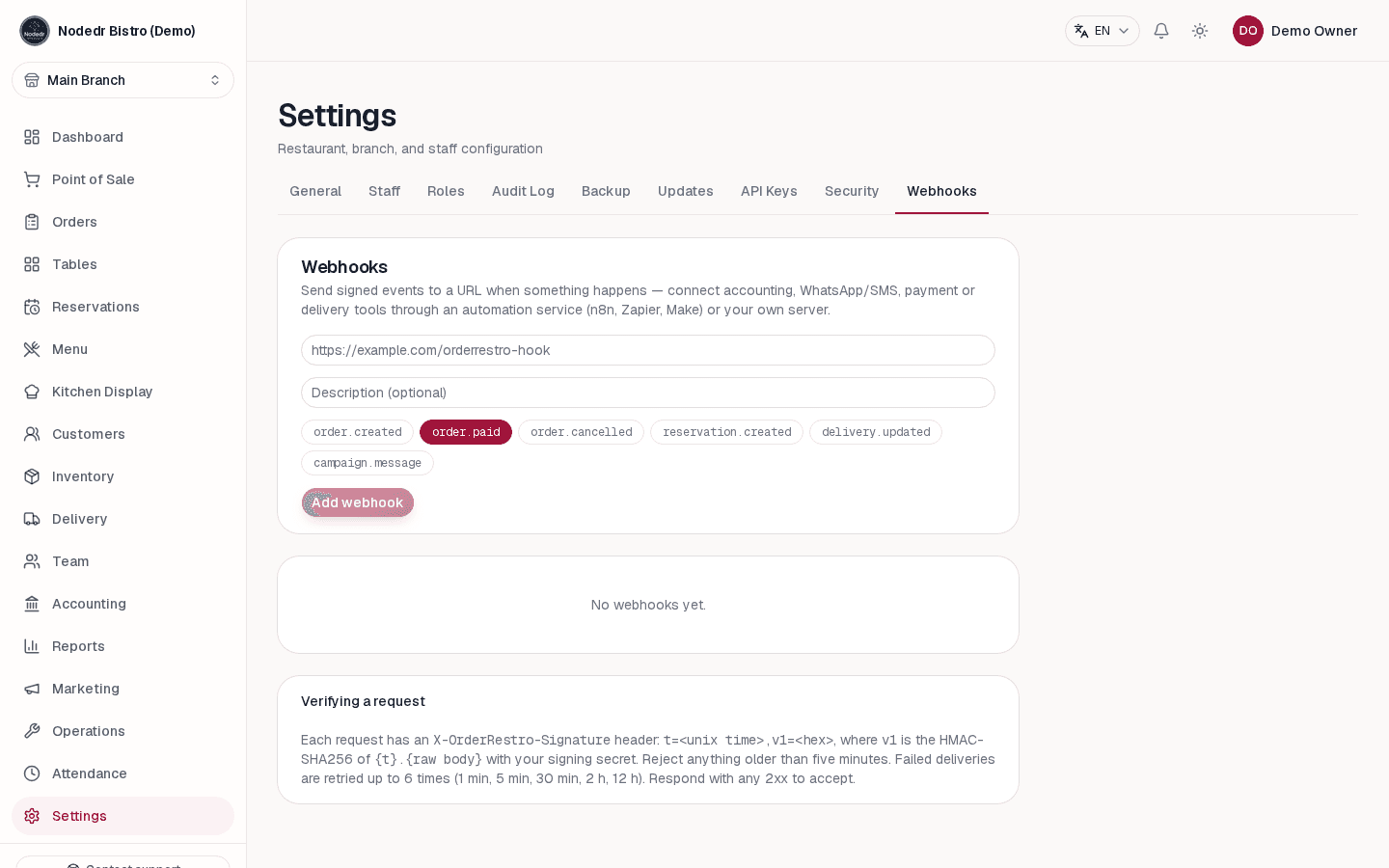
Protect access with two-factor sign-in, save restorable backups, and connect your website and other systems through API keys and signed webhooks.

OrderRestro security settings including two-factor authentication
Protect staff sign-in
OrderRestro API key management for connected services
Connect through the REST API
OrderRestro webhook settings for sending restaurant event updates
Send event updates to other tools

Want to explore every screen?

Keep the full guide close during setup.

The complete tutorial covers reservations, QR ordering, staff, inventory, accounting, reports, backups and integrations with additional screenshots.