
Departments, access exceptions & invoice reading
Group your staff by team, give one person a little more (or less) access than their role, and fill in supplier invoices from pasted text. Install steps for every platform are at the top.
Prefer to read offline? Download the PDF or open the standalone HTML.
Install on your platform
OrderRestro runs on one computer in the restaurant. Every other device just opens it in a browser or the mobile app.
| You have | Use this | Effort |
|---|---|---|
| Ubuntu / Debian PC, mini-PC, Raspberry Pi 4/5 (64-bit) | One-line installer (.deb, amd64 and arm64) | 2 minutes. Best choice. |
| Windows 10 / 11 | Docker Desktop + install.sh from WSL2 or Git Bash, or the Microsoft Store app | About 15 minutes |
| macOS | Docker Desktop + install.sh | About 10 minutes |
| CasaOS / ZimaOS home server | One-click app install | 2 minutes |
| Android phone or tablet, iPhone or iPad | Not a server. Use the OrderRestro mobile app or any browser to connect to your server. | 1 minute |
A small always-on Linux machine is the most reliable server. Use Windows or macOS if that is what you already have.
Ubuntu, Debian, Raspberry Pi
curl -fsSL https://orderrestro.nodedr.com/install-linux.sh | sudo bashWindows
- In PowerShell:
winget install Docker.DockerDesktop. Reboot if asked, accept the WSL2 backend, open Docker Desktop once. - Open WSL2 (Ubuntu) or Git Bash. Plain PowerShell cannot run the install script.
- Run the three commands below.
git clone https://github.com/Raktim94/nodedr-restaurant-pos.git
cd nodedr-restaurant-pos
./install.sh
macOS
Run brew install --cask docker, open Docker.app once, then the same three commands in Terminal.
First sign-in
Open http://localhost:1995 on the server, or http://<server-ip>:1995 from another device on the same Wi-Fi, and create your restaurant at /signup. Updating an existing install runs a small database migration automatically; take a backup first (Settings, then Backup).
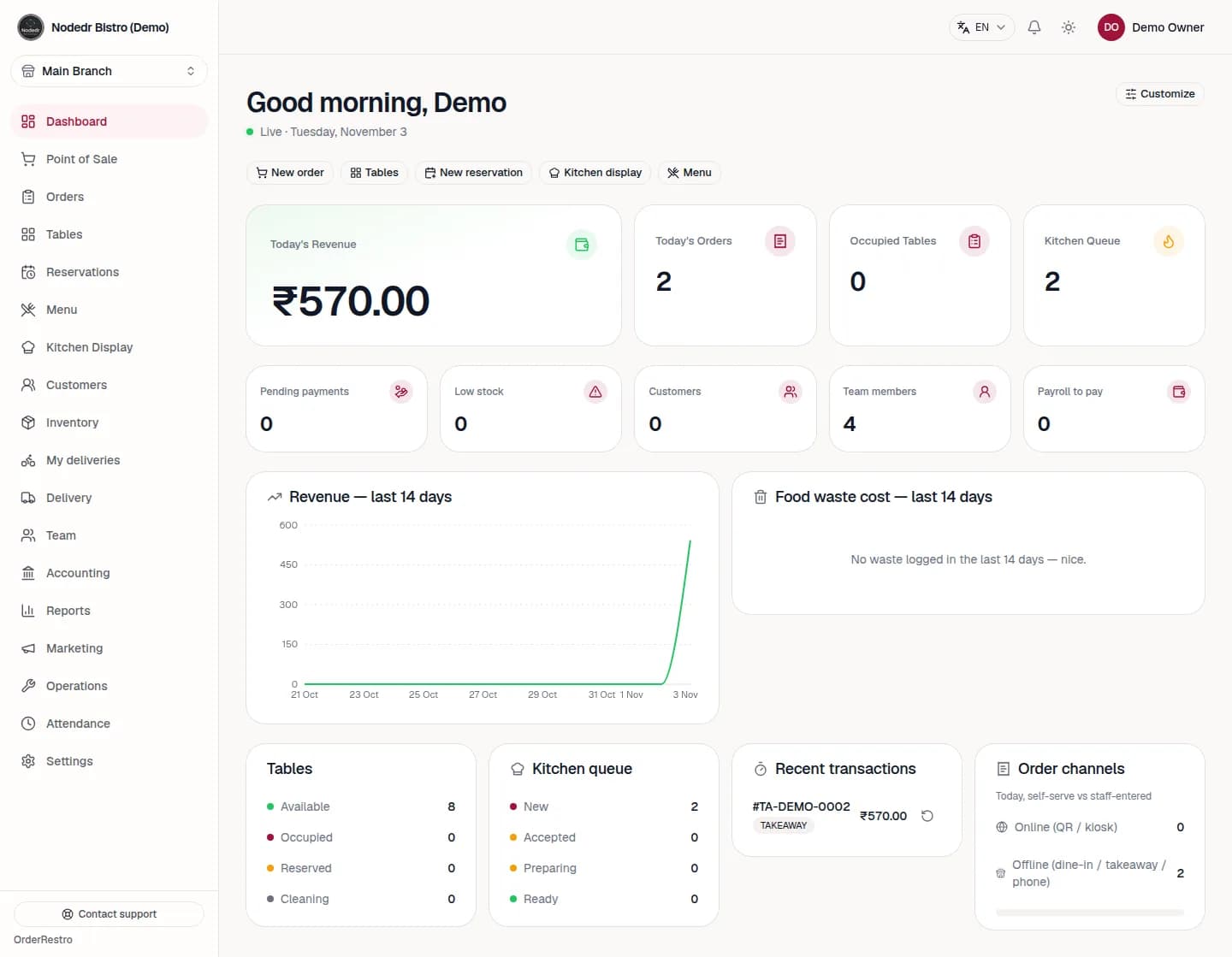
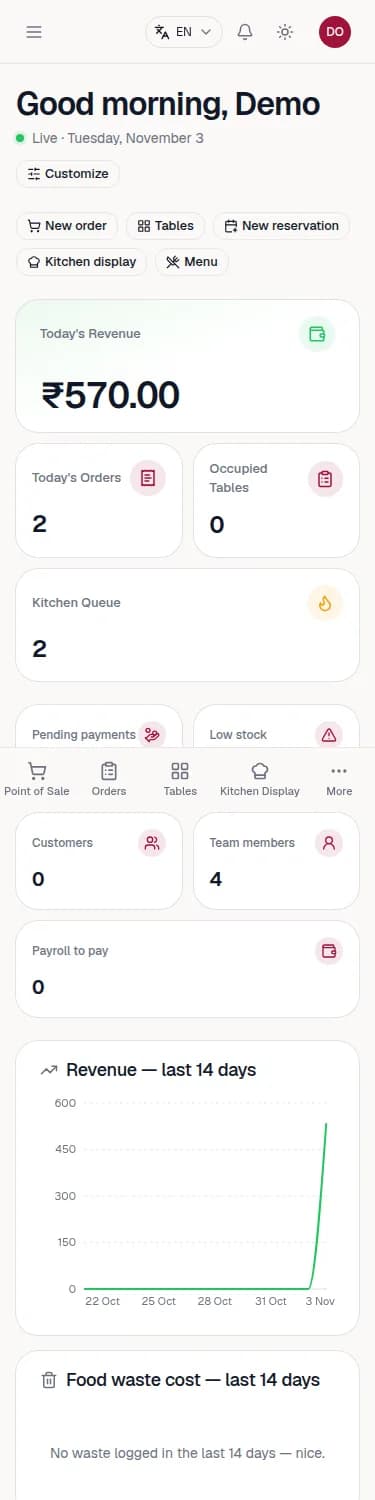
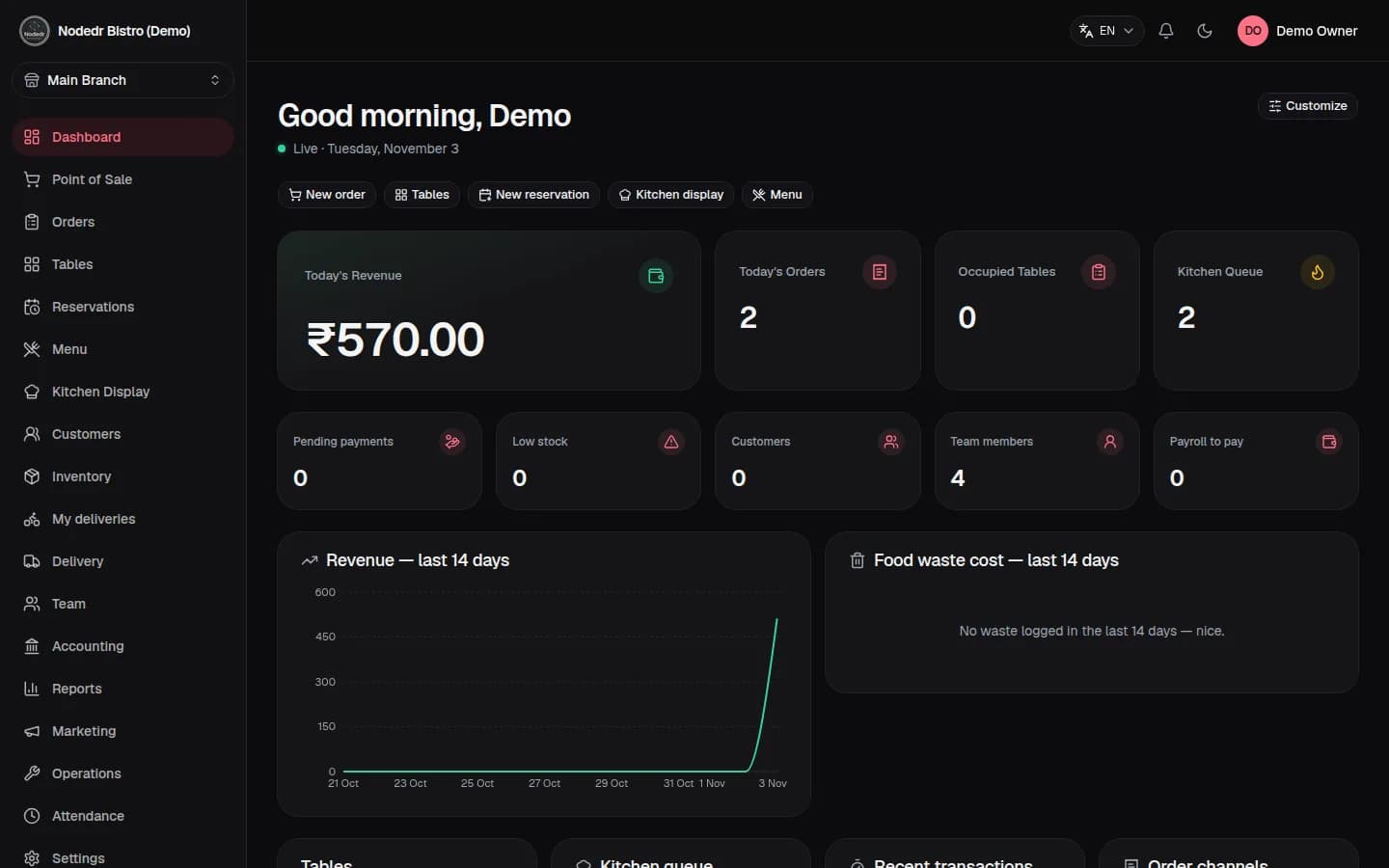
The dashboard
Revenue first, then what needs you now, then trends.
Departments
A label for a team. It never grants access by itself.
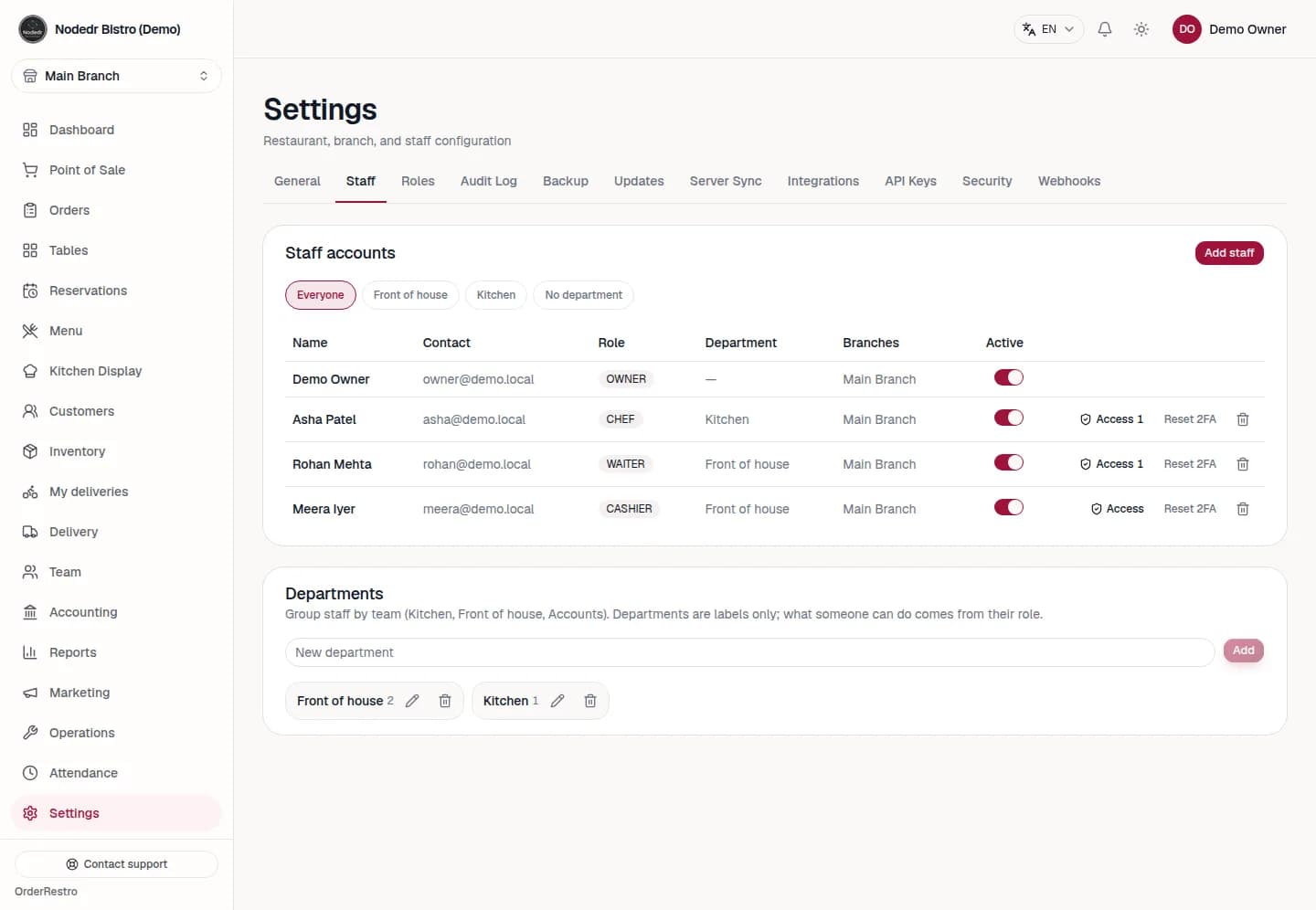
- Go to Settings, Staff and scroll to Departments.
- Type a name and press Add. Rename with the pencil; delete with the bin (people are kept, just unassigned).
- Pick a department when you add or edit staff, and filter the table with the chips.
Access exceptions
Allow or block single permissions for one person, optionally until a date.
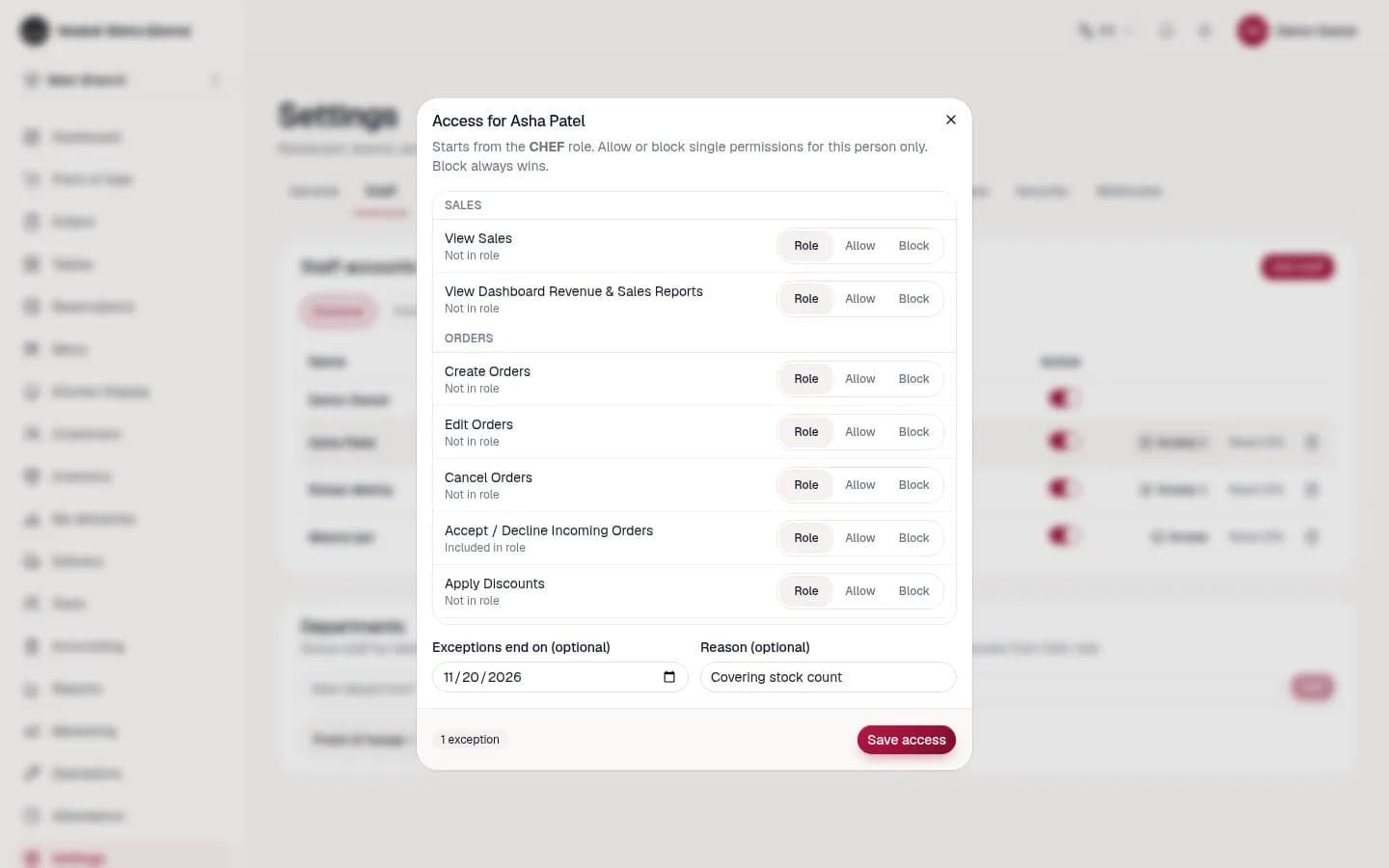
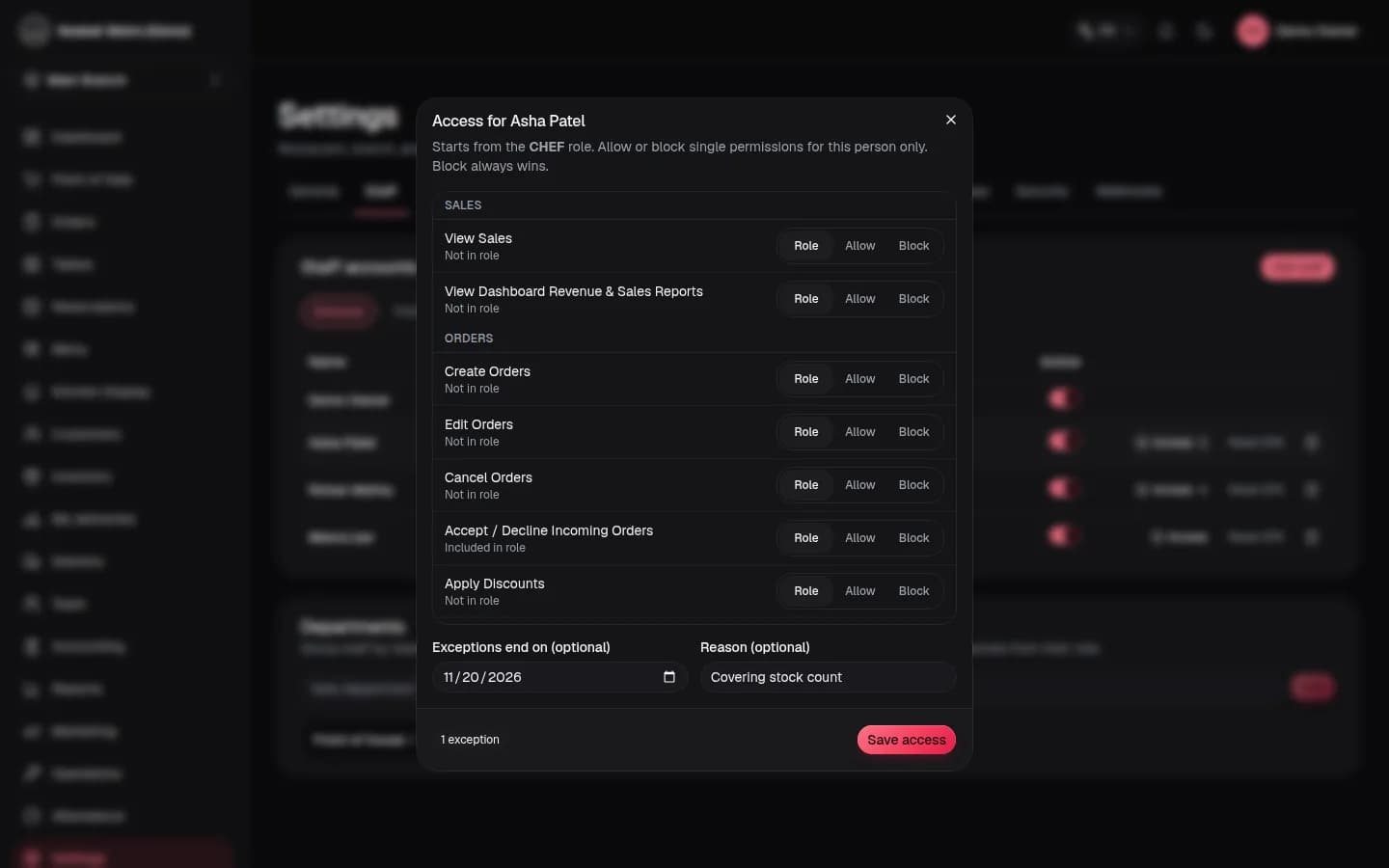
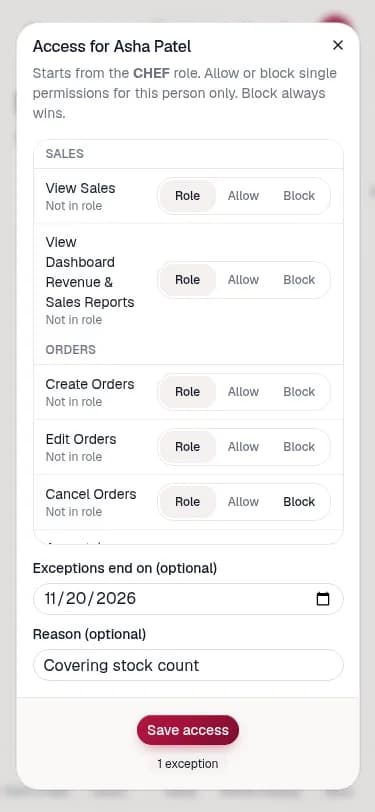
- Press Access on the person’s row (a shield icon on phones).
- Choose Role, Allow or Block per permission.
- Optionally set an end date and a reason, then Save access. It applies on their next action; no sign-out needed.
Safety rules
- Block always wins over the role and over an Allow.
- You can only allow what you hold yourself; the server enforces this too.
- You cannot edit your own exceptions, and the Owner cannot have any, so nobody can lock the business out.
- Needs Manage Users and Manage Roles. Every change goes in the Audit Log.
Reading invoice text
Paste text from a supplier invoice and the form fills itself. You confirm before anything is saved.
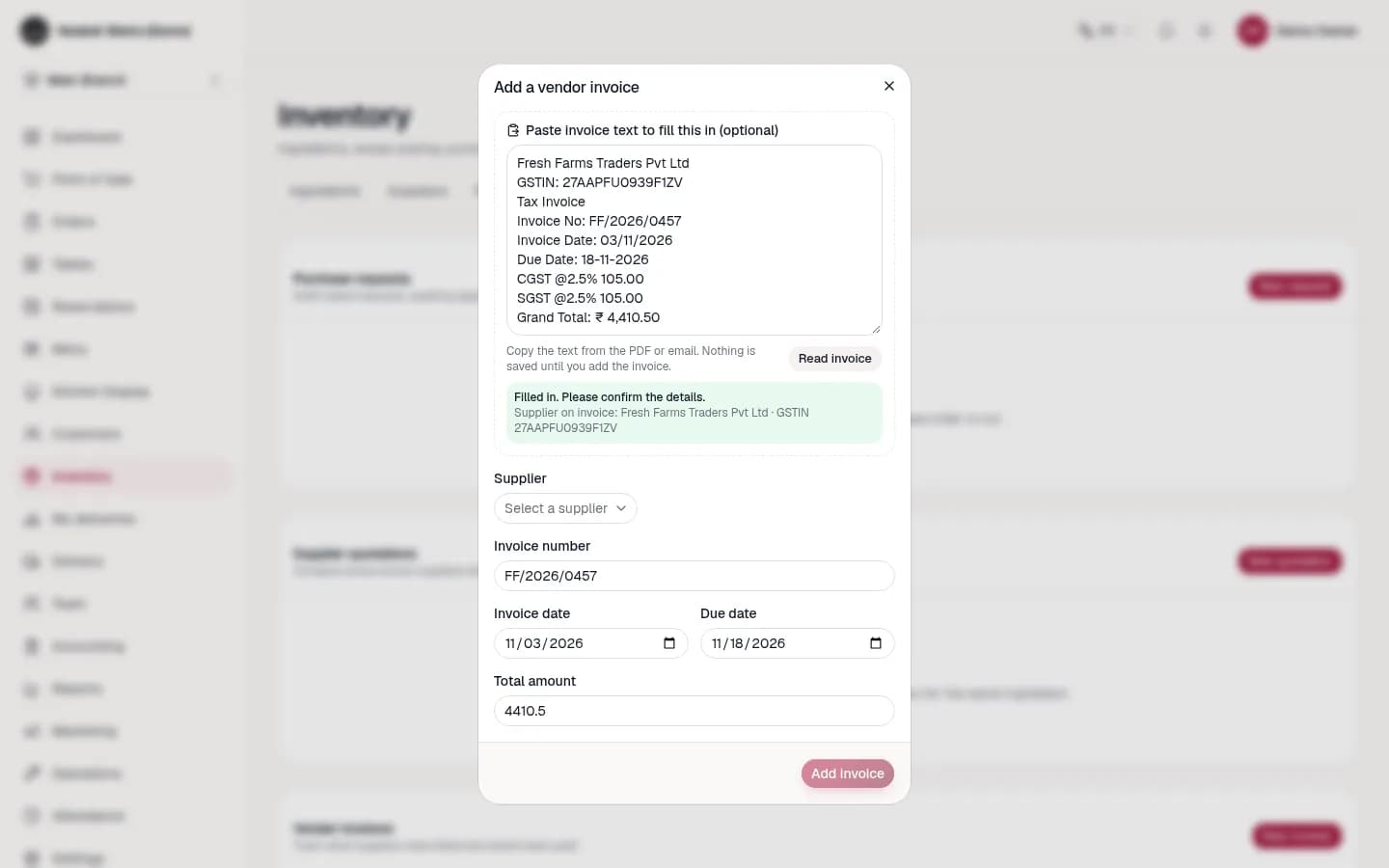
It understands Indian formats: 03/11/2026, 3 Nov 2026, ₹ 1,24,410.50, Rs.250/-, CGST/SGST/IGST lines and GSTIN with a check-digit test. Anything missing or doubtful is listed so you review it. It reads text only (no OCR on photos or scans), so it behaves the same on every platform.
How it stays safe
- Permissions are checked on the server for every request, using the person’s current role and exceptions.
- Departments and permissions from another restaurant are rejected.
- The invoice reader needs Manage Inventory, caps input at 20,000 characters and never stores the text.
- The new screens pass an automated WCAG 2.1 AA scan with zero violations and work by keyboard.
Back to the documentation index.